Organize and review covers
Keep a book project tidy: preview, favorite, hide, filter, and review every cover you generate so the concepts worth keeping stay easy to find.
Last reviewed against the product: September 11, 2026
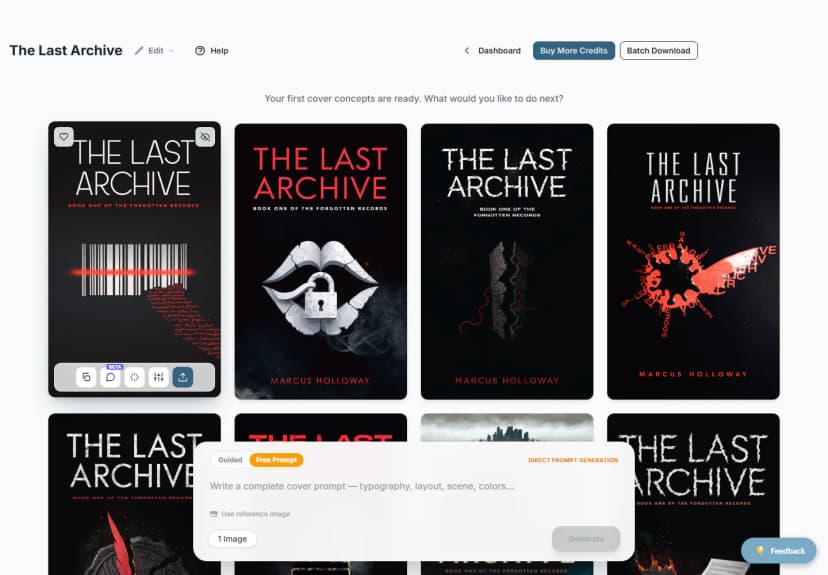
The cover grid
Every generated version for the selected book appears in the cover grid. Newest results are loaded into the same project, and large projects offer Load more rather than loading every image at once.
On desktop, select a cover to inspect it and hover to reveal quick actions. On mobile, tap a cover to open the action sheet.
Favorite a cover
Select the heart icon to mark a cover as a favorite. Open the Favorites tab above the grid to focus on shortlisted concepts.
Select the heart again to return the cover to the normal list.
Favorites are organizational, with one visible effect: your newest favorited cover becomes the book's thumbnail on the Dashboard bookshelf (falling back to the latest cover when a book has no favorites). They do not change how credits, exports, or later generations work.
Hide a cover
Select the hide icon when a version is distracting or clearly off direction. Hidden covers disappear from the normal grid.
Use Show hidden in the filter bar to reveal them. A hidden cover can be restored without regenerating it.
Hiding is safer than trying to delete a concept during exploration because you can reverse the decision later.
This hides one cover inside one book. To take a whole book or an uploaded cover off the Dashboard bookshelf, use the eye icon on its shelf item instead — see the Dashboard bookshelf.
Review a larger preview
Open a cover to see it at a larger size. This is the best place to check:
- Title and author spelling
- Small typography artifacts
- Unwanted objects or anatomy
- Genre fit
- Color and contrast at thumbnail size
- Whether the composition leaves room for print trimming
For audiobook and marketing assets, their result windows also support larger previews before download.
Understand the cover actions
Depending on your plan and screen size, the cover action strip or sheet contains:
- Use prompt
- More like this
- AI Cover Expert chat
- Image editing
- Export & Print
Image editing expands into text editing, typography restyling, style conversion, and visual transformation. Export & Print expands into text-free, audiobook, full wrap, high-resolution eBook, and marketing outputs.
Keep a clean comparison set
A practical review process:
- Hide obvious misses.
- Favorite three to five plausible directions.
- Compare the favorites as small thumbnails.
- Generate “more like this” from the strongest one or two.
- Edit typography only after the artwork direction is stable.
- Export one final candidate and inspect it outside the browser.
Readers often encounter a cover as a small storefront thumbnail, so a design that only works when enlarged is not finished.
Team review
Enterprise books can be shared across the team. Team members see books created by the subscription owner and other active teammates.
Roles affect what appears:
| Role | Cover workspace access |
|---|---|
| Admin | Full team and production access allowed by the subscription |
| Editor | Can generate and edit covers |
| Reviewer | Can view covers but generation and editing controls are hidden |
Use favorites and hidden covers to communicate a shortlist before an editor spends credits on refinements.
Credits and expiring balances
The workspace header shows generation and download balances. When paid credits are within 60 days of expiry, the header shows the number of credits and the date, with a Keep them 60 more days button. The button is the one-time free extension described in the account guide, under "Credit expiry". Buying any pack moves all unused paid credits to the new pack's expiry date.
Plan purchases and credit refills are accessed through Buy more credits. Enterprise members who cannot purchase credits should contact their team administrator.