Create a full wrap cover
Create a print-ready full wrap in BeYourCover: build and export a paperback or hardcover front, spine, back, and bleed layout sized for KDP upload.
Last reviewed against the product: 2026-08-26
What the full-wrap tool creates
The full-wrap editor turns a finished front cover into a print layout containing:
- Back cover
- Spine
- Front cover
- Bleed or hardcover wrap area
- Safety and hinge guides where applicable
- A barcode placement guide
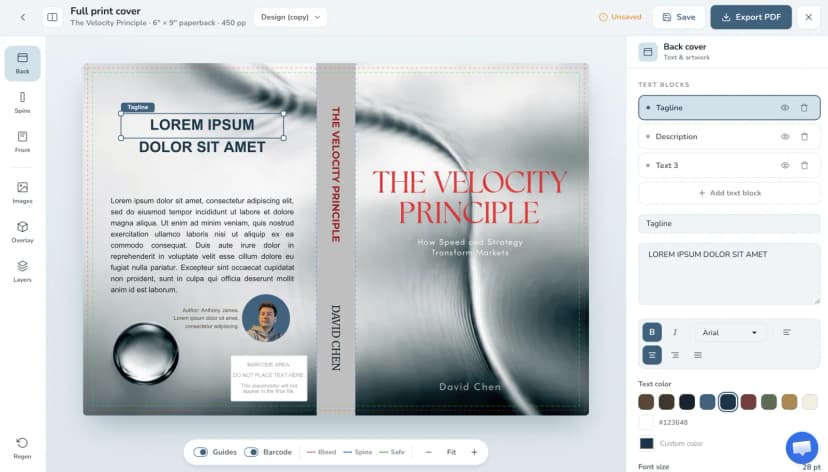
The final export is a PDF sized from the print specifications you enter.
The file is generated from your inputs, not from a live connection to your printer. You are responsible for comparing it with the printer's latest template and requirements.
Open the editor
From a generated cover, select Export & Print → Full wrap cover. From an uploaded cover, open the External Cover Studio and select Create full wrap.
No Pro access yet? The free KDP Cover Creator builds a basic wrap in your browser, with a colour-filled margin instead of AI artwork extension.
If the uploaded cover's title, author, or genre has not been confirmed, review those details first.
Step 1: enter the print specifications
Choose the exact settings for the edition you plan to publish.
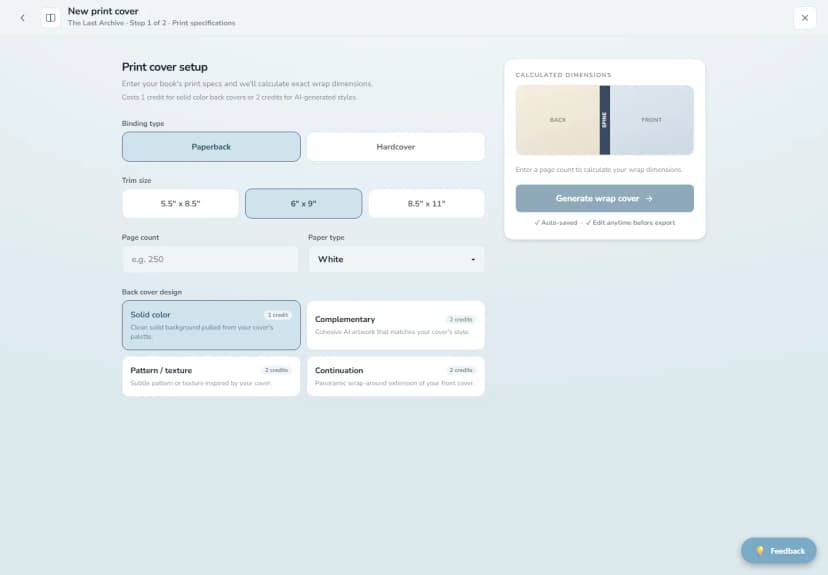
Print provider
Pick the store you're printing with. The provider determines the available trim sizes, cover formats, and how the spine is measured.
- Amazon KDP — spine width is calculated automatically from your page count and paper.
- Barnes & Noble — you enter the spine width manually (see below).
Binding
- Amazon KDP: Paperback, Hardcover.
- Barnes & Noble: Paperback, Hardcover — Printed Case.
Supported trim sizes
The most popular sizes are one-tap buttons; every other size for the selected provider and format is available under More….
Amazon KDP
| Binding | Trim sizes |
|---|---|
| Paperback | 5 × 8 in, 5.06 × 7.81 in, 5.25 × 8 in, 5.5 × 8.5 in, 6 × 9 in, 6.14 × 9.21 in, 6.69 × 9.61 in, 7 × 10 in, 7.44 × 9.69 in, 7.5 × 9.25 in, 8 × 10 in, 8.25 × 6 in, 8.25 × 8.25 in, 8.27 × 11.69 in, 8.5 × 8.5 in, 8.5 × 11 in |
| Hardcover | 5.5 × 8.5 in, 6 × 9 in, 6.14 × 9.21 in, 7 × 10 in, 8.25 × 11 in |
Barnes & Noble offers its full paperback and printed-case trim ranges (4 × 6 in up to 11 × 8.5 in).
Custom trim sizes are not supported.
Page count and paper (Amazon KDP)
| Binding | Accepted range |
|---|---|
| Paperback | 24–830 pages |
| Hardcover | 76–550 pages |
KDP calculates spine width from your page count and paper (White, Cream, Premium Color, or Standard Color — the last paperback-only). Spine text is available only when the calculated spine supports it; the editor requires at least 79 pages for spine text on KDP.
Spine width (Barnes & Noble)
Barnes & Noble Press computes the spine at upload time and doesn't publish a formula, so you enter it manually:
- Open Barnes & Noble's cover template generator and download the full cover template PDF for your book.
- Read the spine width shown on the template, in inches.
- Enter that value in the Spine width field.
The tool then builds the full wrap — back cover, spine, front cover, and bleed — from your trim size and the spine you entered.
Step 2: choose the back-cover style
| Style | Result | Cost |
|---|---|---|
| Solid color | A clean color selected from the front cover's palette | 1 generation credit |
| Complementary | New AI artwork designed to match the front | 2 generation credits |
| Pattern / texture | A subtle generated texture inspired by the front | 2 generation credits |
| Continuation | A panoramic extension of the front-cover scene | 2 generation credits |
The setup screen shows the required balance before generation.
Reopen a saved design
If the selected front cover already has wrap designs, they appear above the new-design form.
You can reopen a design with its saved:
- Binding and trim
- Page count and paper
- Back style
- Text blocks
- Image layers
- Spine styling
- Overlay, visibility, barcode-guide, and other editor settings
Saved designs can also be renamed, duplicated, switched, or deleted from the editor.
Edit the back cover
The Back Cover inspector starts with Tagline and Description blocks. You can add additional text blocks for reviews, an author bio, a website, or other copy.
For each block you can:
- Edit its label and text.
- Show, hide, or delete it.
- Choose a font.
- Apply bold or italic.
- Align left, center, right, or justify.
- Set text color and size.
- Set the text width and center it horizontally.
- Add a drop shadow.
- Add a background panel with color, opacity, padding, and blur.
- Drag the block directly on the canvas.
Keep important copy inside the safe-area guide and leave clear space for the barcode.
Add images to the back cover
Use the Images inspector to place your own pictures on the back cover — an author photo, a publisher or imprint logo, award badges, or icons. This is separate from the back-cover text, so a bio and a headshot no longer interfere with each other.
To add an image:
- Open the Images section.
- Drop a file onto the upload area or browse for one (JPG, PNG, or WebP, up to 5 MB).
- The image is checked automatically and then placed on the back cover.
You can add up to five images per design.
Once an image is on the cover you can:
- Drag it to reposition it.
- Resize and rotate it with the on-canvas handles, and use Reset rotation to return it to straight.
- Adjust its opacity.
- Round the corners — set roundness to the maximum for a circular shape, which suits author headshots and round badges.
- Crop it: the image expands on the canvas, everything outside the bright frame dims, and you drag the frame or its handles to choose what to keep. Select Done to apply or Cancel to discard.
- Rename, hide, show, or delete it from the image list — image layers also appear in the Layers panel.
Images sit behind the back-cover text so your blurb and tagline stay readable on top, and they render in the exported PDF exactly as positioned. Keep them inside the safe-area guide and clear of the barcode zone.
Uploaded images must comply with the content policy. An image that violates it is rejected at upload.
Edit the spine
The Spine inspector lets you:
- Choose a suggested or custom spine color.
- Edit title and author independently.
- Choose separate fonts, sizes, styles, and colors.
- Flip text direction between top-to-bottom and bottom-to-top.
- Drag title and author along the spine.
- Hide either spine text layer.
If the page count is too low, the spine remains a solid color and text controls are unavailable.
Front cover, overlays, and layers
The original front typography is baked into the front image and is not edited in the wrap editor.
Use Regenerate wrap fit if the automatic bleed extension makes the front look stretched or adapts the edges poorly.
Use Back overlay to make back-cover text easier to read:
- None
- Solid darken or lighten tint
- Top or bottom gradient
- Adjustable opacity
Use Layers to show or hide back text, back images, and spine text without deleting them.
Regenerate the back artwork
Open Regenerate to replace the current back artwork.
- Choose Complementary, Texture, or Continuation.
- Add optional instructions.
- For Complementary, optionally upload one reference image.
- Select Generate.
Regeneration uses two generation credits and preserves the rest of the current editor state.
Guides, barcode area, and zoom
The toolbar below the canvas can show or hide:
- Bleed or hardcover wrap guides
- Spine
- Hardcover hinge
- Safe area
- Barcode zone
The barcode rectangle is a placement guide. It is hidden from the normal PDF export; it is not an actual ISBN barcode. Follow your printer's workflow for supplying or reserving the real barcode.
Use the zoom controls to zoom in, zoom out, or return to Fit.
Save and manage versions
The app bar shows Saved or Unsaved.
- Select Save before leaving.
- Rename the design from the Designs menu.
- Duplicate design to branch from the current layout.
- New version (different trim) to return to print setup for another edition.
- Switch between saved designs.
- Delete designs you no longer need.
If you close or switch designs with unsaved work, BeYourCover asks whether to save, discard, or go back.
Export the PDF
- Save the design.
- Turn guides on for visual checking.
- Inspect the safe areas, spine, hinge, bleed, and barcode space.
- Select Export PDF.
- Confirm the proofing acknowledgement the first time.
- The PDF saves straight to your browser's downloads — no new tab opens.
The export hides editor guides and the barcode placeholder, renders the full calculated dimensions, and downloads the print-ready PDF directly.
Before upload, compare the PDF with a fresh template from KDP, IngramSpark, or your printer. Recheck the page count after interior layout is final; even a small page-count change can alter spine width.
Create a wrap through the API (enterprise)
Enterprise subscribers can create the same wrap without opening the editor. POST /api/v1/wraps takes a finished cover, the print specifications, and your back-cover copy, then generates the back artwork, extends your cover art out to the full front print panel, lays the text out, and returns a preview, a full-resolution flat, and the print-ready PDF.
Because there is no canvas to drag things on, you choose a layout preset instead of positions:
| Preset | What it places |
|---|---|
standard |
Tagline, blurb, and author bio |
blurb-only |
One large description area |
minimal |
Tagline only |
Text is auto-fitted to the space available, moved inside the safe margin, kept clear of the barcode area, and coloured light or dark depending on the artwork behind it. Every adjustment comes back in the response's warnings, so you can tell when a blurb was too long to fit rather than discovering it on a proof.
A wrap costs 2 credits with a solid back cover and 4 with AI artwork — the same as the editor. Re-typesetting a wrap you already created is free: POST /api/v1/wraps/{wrapId}/render re-lays the text on the existing artwork, which is what you want for a typo or a shorter blurb. If a wrap job fails before the wrap is created, the credits are returned. If it fails afterwards the wrap is already in your account — it lists, opens in the editor and re-renders for free — so the credits stay spent.
The AI step that extends your cover art out to the full front panel occasionally comes back imperfect — a visible seam, or the artwork treated like a framed picture. In the editor you would click re-extend front; through the API the same free re-run is POST /api/v1/wraps/{wrapId}/extend-front, which returns a job to poll and fresh assets when it finishes. If the extension could not fill the panel completely, the wrap job's response says so with a front_outpaint_incomplete warning, so your pipeline can re-run it without a human looking at the preview.
API wraps are real designs. They appear in the editor's saved-design list as API, so you can open one, nudge a block, and export again by hand — the front panel is the same AI-extended artwork the editor produces, so nothing has to be redone.
The round trip works in the other direction too. On a wrap you laid out yourself in the editor, render keeps your own text blocks, your images and your overlay exactly where you put them, and rewrites only the fields you send — so an automated text or colour update will not undo work you did by hand. A preset sent for such a design is not re-run, because that would replace the layout wholesale; the response tells you so with a preset_not_applied warning, and you can send a full layoutState if re-typesetting is what you actually want.
Re-typesetting only ever happens when you ask for it. render and the update_wrap_text tool leave your layout in place unless the call names a preset, so changing a colour or fixing a typo moves nothing — including on a design whose blocks are still the two the editor starts you with, and on a wrap you created with blurb-only or minimal. Send preset when you do want the text laid out afresh.
Back-cover images come through the API as well. A wrap rendered through render draws your image layers with the crop, rotation, opacity, and rounded corners you set in the editor, so the PDF the API returns matches the one you would have exported by hand. If a layer cannot be loaded it is reported as an image_block_not_rendered warning naming the layer, rather than quietly leaving a gap on the cover.
Endpoint details, field limits, and the full response shape are in the API documentation.