Getting started
New to BeYourCover? See how the Dashboard, book projects, cover workspace, plans, and credits fit together so you can generate your first cover fast.
Last reviewed against the product: September 11, 2026
The three places you will use most
BeYourCover organizes the normal author workflow around three screens:
- Generator — start a new book project and create its first cover concepts.
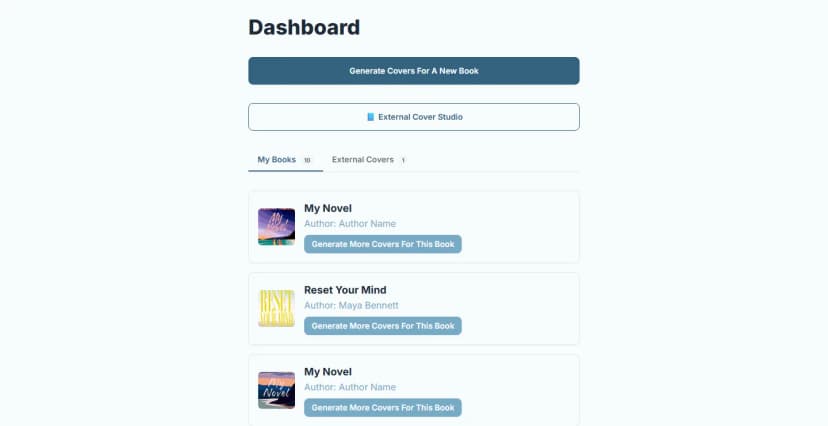
- Dashboard — your bookshelf: every generated book and every cover uploaded through the External Cover Studio.
- Cover workspace — open one book, review every version, generate more, edit a cover, and export finished assets.
You must be signed in to generate or manage covers. If you open a protected page while signed out, BeYourCover sends you to the sign-in page and then returns you to your work.
The Dashboard bookshelf
The Dashboard presents your library as a bookshelf. The header band greets you with your current totals (books, covers generated, and when your last cover was made), shows your remaining generations and downloads on paid plans, and offers the two main actions: Generate covers for a new book and the External Cover Studio — with the refer-a-friend strip just beneath them.
- Each book stands on the shelf as its newest favorited cover — or its latest cover if you haven't favorited any. Select a cover to open that book's cover workspace.
- When you have External Cover Studio access or uploads, pills above the shelf switch between My Books and External Covers; selecting an external cover reopens its studio.
- Use the search box to find any book by title or author across your whole library — even when it spans multiple pages — and the sort menu to order it by recently updated, title, or most covers. Sorting applies to the books currently on screen.
- If your shelf is nearly empty, dashed placeholder slots invite you to start the next book — the first slot starts a new book, just like the main generate action.
Hide a book or an uploaded cover
Point at any shelf item and select the eye icon in its top-right corner to take it off the shelf. On a phone the icon is always visible. Hiding works on every shelf: My Books, Series, External Covers, and Premade Covers.
A hidden item is not deleted. Its covers, credits, and exports are untouched, and it stays out of the shelf counts and out of the search box until you bring it back.
- Select Show hidden above the shelf to see hidden items. They appear dimmed, with a Hidden badge.
- Select the eye icon again on a hidden item to put it back on the shelf.
An uploaded cover is one book, so hiding it on External Covers also takes it out of any series it belongs to. On a shared enterprise shelf you can hide only the books you created; a teammate's book shows no eye icon.
Hiding a whole book is different from hiding a single cover inside a book. Use this one to tidy the shelf; use the other to shorten a comparison set while you review one book's covers.
What is a book project?
A book project stores the information and covers for one title. Depending on the genre, it may also store AI-extracted creative parameters such as tone, setting, tropes, characters, metaphors, and recommended templates.
Create a new project when you are working on a genuinely different book. If you only want to try a new title, subtitle, summary, prompt, or visual direction for the same book, reopen the existing project.
Do not create an identical duplicate project. BeYourCover may block books with exactly the same title, author, genre, summary, and subtitle.
Understand the counters
The cover workspace can show two separate balances:
| Counter | What it is used for |
|---|---|
| Generations or image credits | New covers, visual edits, style conversions, typography variants, audiobook versions, wrap artwork, and marketing assets |
| Downloads | High-resolution exports on Free and Basic access; Pro and Enterprise have unlimited high-resolution downloads |
Pro and Enterprise include unlimited high-resolution downloads. Downloading an approved cover again does not consume generation credits. Generation credits are still used when BeYourCover must create a new asset, such as an audiobook version, visual edit, wrap background, or marketing resource.
Pro users use generation credits across all books. Basic purchases can be tied to a particular book and can include a limited number of high-resolution downloads. Enterprise teams use the shared generation-credit balance attached to their subscription, with unlimited high-resolution downloads.
The interface shows the cost before credit-consuming actions. For a full per-action breakdown, see what each action costs. If a balance is too low, use Buy more credits or ask your enterprise team administrator.
Feature availability
The interface marks unavailable tools with a Pro badge or opens an upgrade screen when you select them.
| Area | Typical availability |
|---|---|
| First cover concepts and basic continuation | Free or paid access, within the limits shown in your account |
| AI Cover Expert chat | Free, Pro, and Enterprise accounts; chatting is free, applying a proposal uses a generation credit |
| Advanced cover editing, references, audiobook, full wrap, marketing assets, and External Cover Studio | Pro or Enterprise |
| Shared books, team roles, higher concurrency, and batch download | Enterprise |
| API keys and webhooks | Eligible Enterprise/Designer tiers; see API documentation |
Plans and allowances can change. Treat the pricing page and the counters shown in your account as the source of truth.
The one-time discovery tour
After your first covers finish generating, the cover workspace starts an interactive tour: the page dims, each step spotlights the real control, and Next/Back move between steps. It walks through the areas readers of this guide ask about most: the difference between Guided and Free Prompt modes, the generator's parameters and the per-cover Generate More button, the AI Cover Expert chat, reusing a cover's prompt with Use Prompt, the editing tools (manual or AI text editing, element transforms, style conversion), and exporting every format — paperback/hardcover wrap, audiobook square, text-free version, high-res eBook, plus marketing mockups and banners. The tour starts automatically only once; you can replay it any time from the Help menu (Help → Replay the tour).
Recommended end-to-end workflow
- Create a project in the Generator.
- Review the first concepts in the cover workspace.
- Favorite promising covers and hide weak directions.
- Generate close variations or switch between Guided and Free Prompt modes.
- Improve the artwork or typography.
- Export an eBook cover, audiobook square, marketing assets, or a full print wrap.
- Proof every final file against the latest requirements of your publishing platform or printer.
Mobile and desktop controls
The same core actions are available on mobile and desktop, but their location changes:
- On desktop, hover a cover to reveal its quick-action strip.
- On mobile, tap a cover to open its action sheet.
- Book details and cover parameters appear under Edit.
- Download and format tools appear under Export & Print or Download & formats.
Where to get help
Use the Help menu in the cover workspace to open this guide or report an issue. Include the affected page URL and explain which book, cover, or export you were using. For a direct conversation, open the live chat bubble in the bottom-right corner, or use the contact page.