Continue an existing book
Return to an existing book to generate more covers with Guided mode, Free Prompt mode, Chat mode, reference images, and the inputs you already saved — no re-entry.
Last reviewed against the product: August 25, 2026
Reopen a book
Open the Dashboard, select My Books, and choose a book — each book stands on the shelf as its latest cover, and selecting it opens the same cover workspace.
The generator bar in that workspace creates new versions inside the existing project, so all concepts remain together.
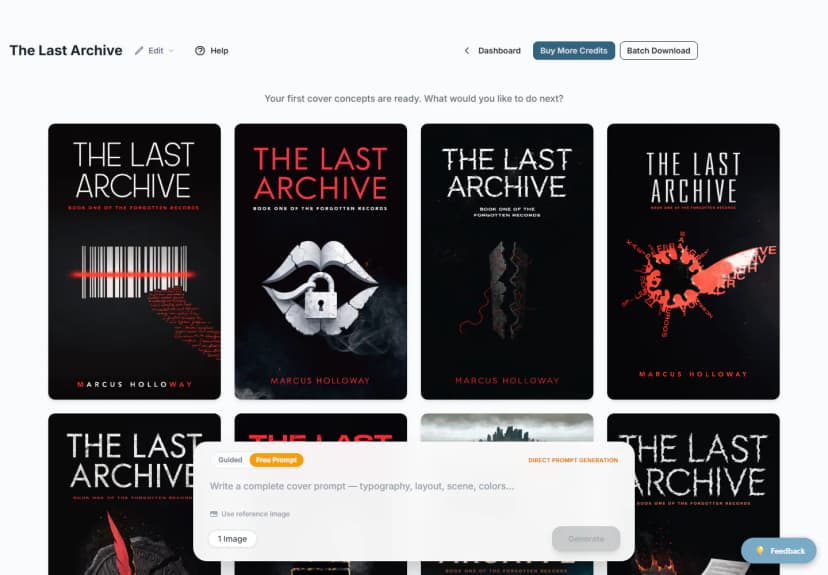
Guided, Free Prompt, and Chat modes
Some genres use BeYourCover's newer Guided workflow. These projects show a mode switch above the generator.
Guided
Guided mode uses the saved book summary and extracted cover parameters. BeYourCover selects or follows a template and builds a structured prompt for you.
Use Guided mode when you want genre-aware concepts without writing a complete design prompt. You can:
- Leave the template on Auto so BeYourCover chooses the best directions.
- Pin a specific template.
- Adjust the variant controls exposed by that template.
- Choose or add a visual metaphor when the template supports one.
- Edit a short tagline when the template has a tagline position.
- Add a short extra instruction in the generator bar.
Free Prompt
Free Prompt mode uses your prompt directly, without the Guided template rewrite.
Use it when you need exact control over scene, layout, typography, colors, or a design concept that does not fit the Guided controls. A prompt is required in this mode.
Selecting Use prompt on an existing cover automatically fills the generator bar. For Guided projects, it also switches the project to Free Prompt mode so that cover's prompt can be reused as written.

Chat
Chat mode (Pro and Enterprise) opens a conversation with the AI Cover Expert in a panel docked to the right of your gallery — your covers stay visible and reflow beside it, so you can look at your work while you iterate instead of firing one-shot prompts.
- Describe what you want; the expert asks questions, offers selectable directions, and proposes complete covers or small localized edits.
- Type @ (or use the mention button) to bring any of your existing covers into the conversation — ask for "this one, but darker", or attach two covers and ask to combine the palette of one with the composition of the other.
- Chatting is free. You only spend a credit when you apply a proposal (generate a new cover) or apply an edit.
- The most recently mentioned or generated cover is the current one — edits apply to it, and it is highlighted right in your gallery (an "In chat" badge and ring) and scrolled into view whenever it changes.
- New covers appear as a thumbnail in the chat too — click it to view it enlarged.
- When the expert recommends another tool — the manual text editor, AI typography restyle, style conversion, remove text, upscale, or the full print wrap — the recommendation card includes a button that opens that tool for the current cover right away.
- The conversation is saved per book, so you can close the workspace and pick it up later. Use New chat to start over.
Chat mode is available on desktop. On mobile, the New cover button keeps the standard generator.
Generate from the bar
- Enter an instruction or prompt.
- Open Generation Options if you want to choose templates, styles, mood, color, or variation count.
- Select the number of covers to create.
- Select Generate.
For older/non-Guided projects, generation options can include:
- Template or visual style
- Mood and tone
- Color palette or up to three custom colors
- Main elements to include
- Elements to avoid
- A strict “only show these elements” option
The available controls depend on the project's generation system and your plan.
Generate more like a cover
Choose More like this on a cover to create close variations from that concept. This is useful after you find a strong composition and want to explore nearby alternatives instead of starting over.
The new versions are added to the same book project and use the credit amount shown in the workspace. If a generation fails, that credit is returned.
Reuse a cover's prompt
Choose Use prompt to copy the prompt behind a cover into the generator bar.
If the cover was created with reference images, BeYourCover also reloads those references when they still belong to your account. Style, mood, color, and variation selections are reset so the copied prompt is not accidentally mixed with old options.
Generate from a reference in an existing project
Reference mode is available in Free Prompt mode and in projects that do not use the Guided/Free switch.
- Select Use reference image.
- Upload the reference.
- Describe what should change or stay consistent.
- Choose whether to include the saved title, subtitle, and author details.
- Generate.
BeYourCover studies your reference's art style, composition, colors, lighting, and typography, then generates a brand-new cover in that direction with your own title and author text. The result is a style-inspired recreation — not an edit of the reference image itself — so exact faces, objects, or pixel details from the reference won't be copied over. Reference generation uses one image credit. If the run fails, the credit is returned.
Reference mode is intentionally disabled in Guided mode because Guided generation builds its result from templates and saved book parameters.
Edit the saved book details
Open Edit → Book details to update:
- Title
- Author or byline
- Genre and subgenre
- Planner year
- Subtitle or tagline
- Summary
Saved changes are used by future generations and text layouts. Use this for a new title version or a stronger summary. For a completely different book, create a new project.
Saving book-detail changes is a Pro feature.
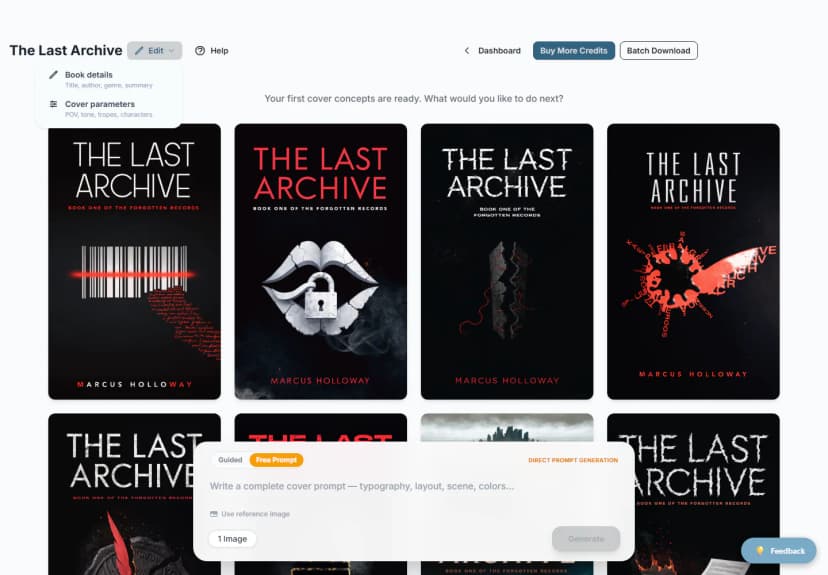
Edit cover parameters
Guided projects can show Edit → Cover parameters. The exact fields vary by genre.
Fiction parameters can include point of view, heat level, setting, pairing, figure count, tones, tropes, characters, and visual metaphors. Nonfiction parameters can include book mode, whether there is an iconic object, and whether a portrait or anonymous figure belongs on the cover.
You can:
- Replace an extracted value.
- Reset an edited field to the extracted value.
- Add or remove characters.
- Add, edit, type, or remove metaphors.
- Save a tagline that is separate from the subtitle.
These parameters influence future Guided covers. They do not rewrite covers that already exist.
Generation locks and concurrency
Most accounts run one AI operation at a time. While an edit or generation is active, other credit-consuming actions are temporarily disabled. Enterprise plans can have a higher concurrent-generation limit.
Wait for the current job to finish before starting another action unless your enterprise workspace explicitly allows it.