Create marketing resources
Turn a finished cover into marketing: generate ads, social-media mockups, and promotional video assets in BeYourCover to launch and promote your book.
Last reviewed against the product: September 20, 2026
Marketing resources are available on the Pro plan (and Enterprise). Each generated asset also uses image credits, listed per resource below.
Open the marketing tool
From a generated cover, select Export & Print → Marketing resources. From an uploaded cover, open the External Cover Studio and select Marketing resources.
The tool loads any assets previously generated from that cover.
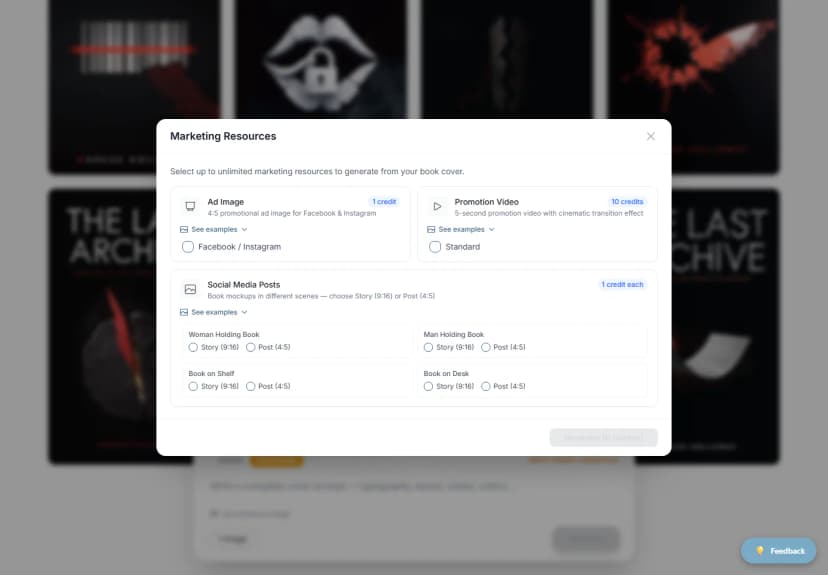
Available resources
Ad Image
- Facebook / Instagram
- 1080 × 1350 pixels
- 4:5 aspect ratio
- 1 image credit
The Ad Image is built for paid Facebook and Instagram campaigns. It is a poster-like graphic, not a photo of a book in a room: your cover sits large, flat and fully visible in the centre, on a bold backdrop drawn from the cover's own colours (a gradient, a duotone wash, or a blurred echo of the artwork). The top or bottom third stays clear so you can add your headline and call to action in Ads Manager. The image itself carries no text, so your copy never fights with baked-in words, and the centred cover survives the 1:1 crop Facebook applies in some placements.
The Ad Image and the Social Media Posts below are different assets for different jobs: the ad sells the book with the cover alone and leaves room for your copy; a post shows the book as a physical object in a lifestyle scene.
Social Media Posts
Social Media Posts are lifestyle mockups for your organic feed and Stories: the printed book in someone's hands, on a shelf or desk, on a phone or e-reader. They are photographs of a scene, complete in themselves, with no copy space reserved.
Choose a scene and one or both formats:
| Scene | Story | Post |
|---|---|---|
| Woman Holding Book | 1080 × 1920, 9:16 | 1080 × 1350, 4:5 |
| Man Holding Book | 1080 × 1920, 9:16 | 1080 × 1350, 4:5 |
| Book on Shelf | 1080 × 1920, 9:16 | 1080 × 1350, 4:5 |
| Book on Desk | 1080 × 1920, 9:16 | 1080 × 1350, 4:5 |
| Peel Reveal (blank wrap curling back to tease your cover) | 1080 × 1920, 9:16 | 1080 × 1350, 4:5 |
| Audiobook (phone player in a candlelit scene) | 1080 × 1920, 9:16 | 1080 × 1350, 4:5 |
| E-Reader (bright cozy flat lay) | 1080 × 1920, 9:16 | 1080 × 1350, 4:5 |
Each selected scene-format combination uses one image credit.
Choosing a style
Above the resource list you'll find a Style row. On Auto (the default), every scene is automatically dressed to match your book's genre — a thriller gets rain-streaked glass and cold noir light, a romance gets florals and golden-hour warmth. Pick a preset instead — Cozy, Minimal, Moody, Luxe, Summer, Autumn or Winter holidays — and that mood overrides the scene's default look. The style applies to the mockups, the ad image and the promo video (its frames and its lighting and motion follow the same mood); Amazon A+ graphics keep their clean, guideline-friendly look either way. Generating the same scene with a different style is the easiest way to get a genuinely different result. The See examples previews under each resource follow the style you pick, so you can compare moods before you spend a credit. Every mockup scene and the ad image have examples in all seven styles; the promotion video keeps its Auto example, with a note saying so.
Promotion Video
- Standard 5-second promotional video
- Vertical 9:16 composition
- Cinematic transition treatment
- 10 image credits
Select and generate
- Expand See examples if you want to preview the visual format. The examples match the selected Style; switch styles to compare them. Where a style has no example of its own, the Auto example appears with a note.
- Select the resource checkboxes.
- Review the total credit cost in the footer.
- Select Generate.
The tool prevents generation when the balance is below the displayed cost.
If the book has a Launch Kit
A Launch Kit includes bonus credits reserved for that book's own assets. Marketing resources are kit assets, so the footer shows both pools — for example 28 from this book's Launch Kit · 458 from your account — and the available figure is the sum of the two.
The kit credits are spent first. After generating, the results screen names the pool that paid and what is left, for example 1 Launch Kit credit used · 27 left for this book. Your account balance does not move while kit credits remain, because the kit paid.
Keep working in the background
Marketing generation can take several minutes. Select Close & Keep Working to return to the cover workspace.
When the background job completes, a notification appears in the workspace. Select it to view the results.
Preview and download
Results are grouped into:
- Posts & Ads
- Stories
- Videos
Select an image to open a larger lightbox. Videos can be played with controls. Use the download button on each asset to save it.
Select Generate More to return to the resource picker without losing previously generated assets.
Reuse previous resources
When you reopen the marketing tool for the same cover, the Previously Generated section lists stored assets. You can preview and download them again without spending credits.
Practical review checklist
Before publishing a marketing asset, check:
- The cover is the exact intended version.
- The title and author remain legible.
- The mockup did not alter the cover art or typography.
- Hands, faces, book edges, and shelves look plausible.
- No unexpected text, watermarks, borders, or claims were added.
- The aspect ratio is correct for the placement.
Add captions, calls to action, prices, and legal copy in your marketing platform or design application after you approve the generated visual.