Create covers for a new book
Start a new book in BeYourCover: enter your title and details, pick an input method, and generate your first on-genre cover concepts in a few clicks.
Last reviewed against the product: August 23, 2026
Start a new project
Open the Generator, or select Generate covers for a new book from the Dashboard.
You can also start from a specific template: browse the Book Cover Templates gallery, filter by genre, and pick a template. The Generator opens with that template selected and the matching genre prefilled, and your first concepts are created with it — the style rating step is skipped since you've already chosen. A banner above the form shows the selected template; dismiss it to let BeYourCover choose automatically instead.
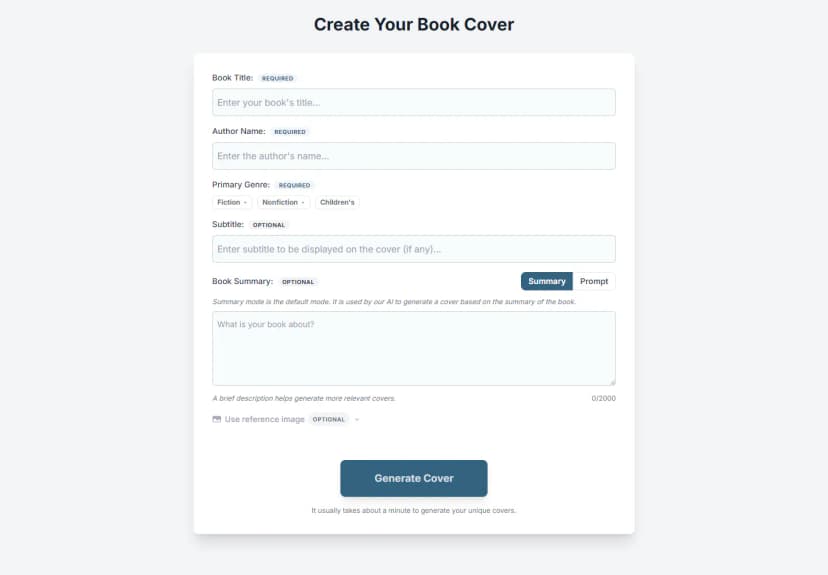
Enter the required information:
- Book Title
- Author Name — optional for Planner & Journal projects
- Primary Genre
- Age band or format for children's books when requested
You can also add a subtitle, a subgenre, and a summary or prompt. Planner & Journal projects use adapted labels such as Brand/Title, Byline, Tagline, and an optional year.
Choose the right genre and subgenre
Start with Fiction, Nonfiction, or Children's, then choose the closest primary genre. Some visually broad genres ask for an optional subgenre because a cozy mystery, domestic thriller, dark romance, and romantic comedy should not use the same cover language.
For children's books, choose the age band or format. This is treated as a required creative signal.
If no listed genre is a good fit, choose Other. Both Fiction and Nonfiction offer it, and the one you pick it from is kept — BeYourCover then infers a genre from that side only, so a nonfiction book is never given a fiction cover. Give BeYourCover a useful summary or prompt so it has enough context to design the cover.
Choose Summary or Prompt
The main description field has two input modes:
Summary
Use Summary when you want BeYourCover to interpret the story and select an appropriate visual concept. A useful summary usually includes:
- The central character or subject
- The main conflict or promise
- The setting
- The tone
- One or two distinctive visual anchors
You do not need to paste the entire manuscript. A focused description is more useful than a long synopsis filled with minor plot points.
Prompt
Use Prompt when you already know what the cover should look like. Describe the scene, composition, typography, color, lighting, and mood directly.
Example structure:
Large condensed title at the top; isolated lighthouse in a winter storm; navy, white, and signal-red palette; cinematic realism; generous negative space; author's name at the bottom.
Prompt mode preserves direct visual ideas while still allowing BeYourCover to strengthen a very short instruction.
Optional reference image
Pro and Enterprise users can select Use reference image.
- Accept the reference-image terms the first time you use the feature.
- Upload a JPEG, PNG, or WebP.
- In Summary mode, add instructions explaining what should be borrowed from the reference.
- In Prompt mode, use the main prompt as the reference instruction.
Current upload limits are:
- Maximum file size: 5 MB
- Minimum dimensions: 256 × 256 pixels
- Maximum dimensions: 4096 × 4096 pixels
- Pro: one reference image
- Enterprise: up to four reference images
Only upload images you have the right to use. Reference images are processed by AI providers as part of generation.
Generate the first concepts
Select Generate Cover. Depending on the genre, BeYourCover may briefly ask you to confirm an inferred subgenre before generation begins.
Rate the styles you like
For most genres, BeYourCover then starts preparing your covers and, while it works, shows sample cover styles for your subgenre one at a time — thumbs up the ones you'd love, thumbs down the ones you wouldn't. Your feedback steers the AI toward your taste while keeping to your genre's conventions. Every style gets its own verdict, so a favorite can never be knocked out by an unlucky matchup. Like exactly two and those become your first two covers; like more and BeYourCover generates with the two that fit your book best; thumbs-downs are never used. Once you've liked two styles a Continue with my likes shortcut appears so you don't have to rate the rest, and Skip — let AI decide is always available.
If you step away — no verdict for about a minute — generation continues automatically with the styles you've liked so far, or with automatic selection if you haven't voted yet.
Your verdicts are remembered. When you create another book in the same subgenre, BeYourCover offers a one-tap Use your usual style? shortcut — accept it, or choose Show me options to rate again with your past favorites shown first (and past thumbs-downs pushed aside).
The rating step is skipped automatically when you have already chosen a template or style in Advanced Options, when you generate from a reference image, or in Prompt mode. If a liked style genuinely doesn't fit the book (for example a portrait-led style for a book with no characters), BeYourCover substitutes the closest matching style so the covers stay professional.
Generation normally takes around a minute. Keep the progress window open until the job finishes. Your project is created only when generation starts successfully; failed initial runs are cleaned up automatically where possible.
After generation, BeYourCover opens the cover workspace for the new project.
Improve the quality of the first run
- Include a summary even though it is optional.
- Choose the most specific genre and subgenre available.
- Put only cover-relevant details in the prompt.
- Mention elements that must be present or avoided.
- Avoid conflicting directions such as “minimalist” and “densely detailed.”
- Keep title, subtitle, and author spelling final before generating.
Text and language notes
The cover text workflow is optimized for Latin characters. Accented Latin letters are supported, but scripts such as Arabic, Cyrillic, Hebrew, and many Asian scripts may not render reliably in the current text tools.
If the generated typography needs correction, use the cover text editor after generation rather than repeatedly regenerating the artwork.
If BeYourCover says you already created a free book
Free access can be limited to one book project. Select View Your Book to continue the existing project, or choose a paid plan to create another book.