Use the External Cover Studio
Use the External Cover Studio to upload an existing cover and build new formats — audiobook, wrap, marketing assets, and series covers — without regenerating the front.
Last reviewed against the product: September 19, 2026
When to use the studio
Use the External Cover Studio when you already have a finished front cover from a designer, another application, or an earlier project and want BeYourCover to create additional formats from it.
You do not have to generate a cover first. An upload can be the first project on a new account.
The studio can produce:
- A square audiobook cover
- A full print wrap
- A text-free version
- Marketing resources
- The next book of a series, matched to your upload
It can also give the uploaded cover back at print resolution.
It does not replace your uploaded front with a newly generated cover.
Upload a cover
There are two ways in:
- Open the Dashboard and select External Cover Studio.
- Open the External Cover Studio page and select Upload Your Cover. This signs you in first if you are signed out.
Then:
- Upload a JPEG, PNG, or WebP.
- Confirm that you have the rights to use the image and will review the outputs.
- Select Continue.
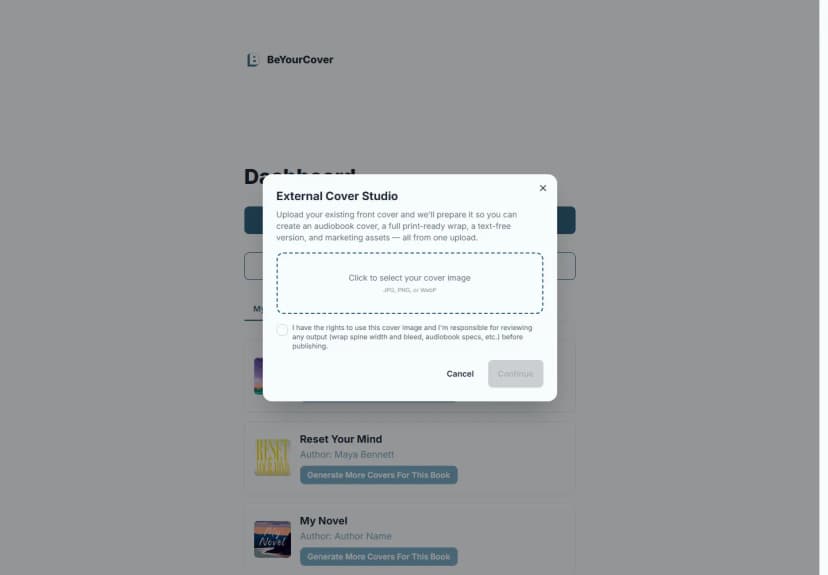
The image must be a JPEG, PNG, or WebP up to 10 MB, from 256 × 256 through 4096 × 4096 pixels.
BeYourCover moderates the upload, stores it as a project, and adapts the front to a 5:8 working format for the studio.
Confirm the detected details
After upload, BeYourCover attempts to read:
- Title
- Author
- Genre
Correct any mistakes before continuing. The studio tools reuse these confirmed details.
If automatic detection fails, enter the fields manually. A title is required; author can be left blank.
The hub highlights the full wrap as the main output, with the audiobook, text-free, marketing, and series tools presented as cards beneath it. Each card has a Generate or Start button. A Book Launch Kit card sits below them.
Download the cover at high resolution
Select High-res download, beside the heading at the top of the hub. BeYourCover enlarges your upload to print resolution and downloads it.
Use this when the file you uploaded is too small to print. The other tools make new formats from the cover; this one returns the cover itself.
The first download prepares the file, which takes a moment. BeYourCover stores it, so every download after that is immediate and costs nothing more.
Choose a size, DPI and file format
Select Advanced export, beside High-res download. Choose pixels or a print size, the DPI, and JPG or PNG, then download.
Use this when a retailer asks for an exact size. The file comes from the same print-resolution master as the high-res download, so the first export prepares it and later exports at other sizes cost nothing more.
Create a full print wrap
Select Create full wrap on the highlighted card, then enter binding, trim, page count, paper, and back-cover style.
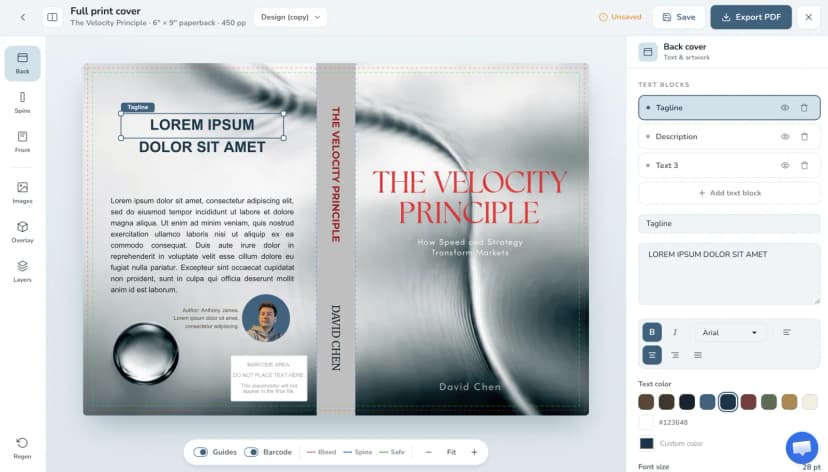
No Pro access yet? The free KDP Cover Creator builds a basic wrap in your browser, with a colour-filled margin instead of AI artwork extension.
The studio passes the confirmed title, author, and genre into the wrap editor. The original front remains the visual source.
Create an audiobook cover
Select Generate on the Audiobook cover card to adapt the uploaded design to a square 1:1 format. The normal and full-resolution workflow is the same as it is for generated covers.
See Export and repurpose covers.
Create a text-free version
Select Generate on the Text-free cover card. BeYourCover removes the title and author and opens the clean artwork in a preview.
If a text-free version already exists, the card's button reads View and opens it instead of generating it again. You can then prepare and download a high-resolution version.
Create marketing resources
Select Generate on the Marketing resources card to create ads, social mockups, and video from the uploaded cover.
The studio passes the confirmed metadata into the marketing workflow. Generated assets remain associated with the uploaded cover and can be reopened later.
Start a series from your upload
Select Start on the Start a series card. Your upload becomes Book 1 and the series reference. Enter the next book's title, and optionally a summary and a cover scene, then select Start series & generate. BeYourCover generates the next cover to match your upload: same style, same colours, same title lettering.
Series covers are a Pro and Enterprise feature. Each next-book cover uses 1 credit.
When the book is already in a series, the card reads Next book in this series and the dialog skips the series setup.
The new cover opens in the new book's own workspace. Both books appear on the Dashboard's Series tab, in reading order. Because the studio has not read your book, the series Character Sheet starts empty. Open Characters on that tab and describe your recurring characters before you generate book 2.
See Series covers.
Build a Launch Kit from your upload
The Book Launch Kit card at the bottom of the hub turns the uploaded cover into a full launch: 3D mockups, ad images, a promo video, an Amazon listing kit, ads and social copy, and a launch calendar.
The card matches what your account can do:
- Get the Launch Kit — you do not have a kit yet. The card shows the price. Selecting it opens the Launch Kit page, which shows a complete example kit before you buy.
- Build your Launch Kit — you already bought a kit and have not assigned it to a book, or your Enterprise plan includes one. Selecting it asks you to confirm the book, then opens the builder.
- Open your Launch Kit — this uploaded cover already has a kit. Selecting it opens that kit.
In every case the studio passes the uploaded book along, so the Launch Kit page opens on it instead of asking you to find it in a list of your books. A purchased kit covers one book permanently, so you confirm the book before it is assigned.
See Book Launch Kit.
Reopen an uploaded cover
Uploaded covers appear in the Dashboard under External Covers.
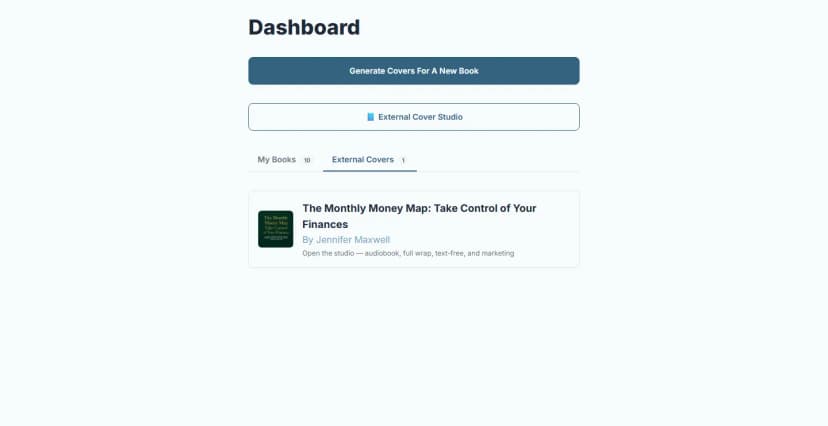
Select an entry to reopen the studio. Previously generated text-free and audiobook files are recovered automatically. Saved full-wrap designs and previous marketing resources are also available from their respective tools.
Access and credits
The External Cover Studio is available to Pro and Enterprise users. Basic or free users are offered the applicable upgrade path.
Uploading a cover and confirming its details is free. Each tool then costs credits:
| Tool | Cost |
|---|---|
| Full wrap cover | 2 credits with a solid back, 4 credits with an AI back |
| Audiobook cover | 1 credit |
| Text-free cover | 1 credit |
| Marketing resources | 1 credit per asset, 10 for the promo video |
| Next book in a series | 1 credit |
Each card shows its cost before you select it. Viewing an asset you already generated is free.
Your balance appears at the top of the studio. Select Buy credits there to add more. The same packs are available from Buy credits in the account menu, from the credit count on the Dashboard, and at /pro. Credits are shared across every book and every tool.
Enterprise plans use their plan credits instead. Top those up from the Enterprise Dashboard.
Uploading and confirming the cover itself does not create multiple independent projects; one uploaded cover acts as the parent for its derived assets.
Rights and proofing
Only upload a cover you own or are authorized to use. You remain responsible for:
- Copyright and trademark review
- AI-output review
- Spine width and bleed
- Audiobook dimensions
- Marketing claims and platform rules
- Final printer or distributor approval