Export and repurpose covers
Export finished covers from BeYourCover as eBook, text-free, audiobook, and marketing outputs — choose the resolution and file format, or download in KDP-ready batches.
Last reviewed against the product: September 19, 2026
Open Export & Print
Select a cover and open Export & Print. On mobile, use Download & formats.
The menu can contain:
- Free-text eBook cover
- Audiobook cover
- Full wrap cover
- High-res eBook cover
- Advanced export
- Marketing resources
- Book Launch Kit
Availability depends on your plan.
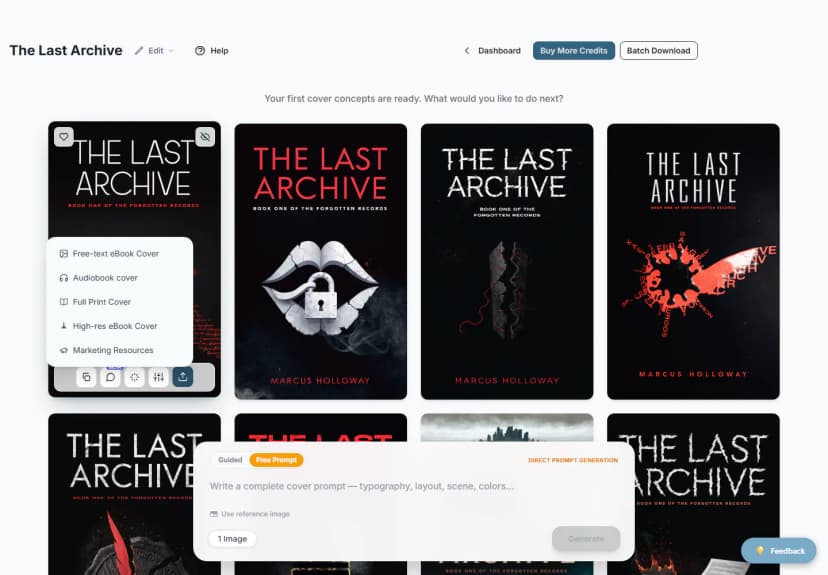
High-resolution eBook cover
Choose High-res eBook Cover to prepare and download a publishing-ready JPG. If an upscaled version already exists, BeYourCover reuses it.
Free and Basic access can use download credits and may ask you to confirm the charge before upscaling. Pro and Enterprise include unlimited high-resolution downloads. Without Pro, Enterprise, or a remaining download credit for that book, high-resolution upscale does not run.
Without a download credit, you can buy a one-time Single Download ($15 / €15) that adds one download credit for the current book, or upgrade your plan from the same window. The single-download offer appears on the high-res eBook, text-free, and audiobook download actions.
The downloaded filename includes the book title and output type where possible.
A version you made in the font editor downloads its own edited design, not the cover you started from. A version made in the text editor keeps the same artwork with your typography drawn on top, so it reuses the original's upscale.
Advanced export
Choose Advanced export when you need a specific pixel size or a PNG. The standard high-res download always writes a JPG at the size the upscaler produced. Advanced export writes the same cover at a size and format you choose.
It uses the same access as High-res eBook Cover, and one download credit covers both. If you have already downloaded a cover in high resolution, Advanced export on that same cover costs nothing more — and it works the other way round too. Free access opens the upgrade window instead.
The first advanced export of a cover runs the AI upscaler once to build a high-resolution master, around 3200 x 5120 px. Every export after that — any size, any format, as many as you like — is made from that master and costs nothing extra. Sizes up to the master come from real detail rather than from stretching the file.
File format
- JPG — smaller file, written at 95% quality. What most stores and print services expect.
- PNG — lossless and larger. Best when a designer will edit the file.
Resolution has three modes:
- Original — every pixel of the prepared file, with no resampling.
- Pixels — width and height in pixels.
- Print size — width and height in inches, with a DPI. For a 6" x 9" front panel with KDP's 0.125" bleed, enter 6.125" at 300 DPI to get 1838 px wide.
In both size modes the width and height are linked, shown side by side with a lock between them and your cover's ratio (for example 5 : 8). Type in whichever one you know and the other follows. You cannot set them independently, because the export never stretches or crops your artwork.
Resolution tag (DPI) is written into the file, so Photoshop, InDesign, and print services place it at the right physical size. On its own it does not change the pixels. The window shows the exact output size and the physical size it prints to before you export.
The filename contains the pixel size, so two exports of the same cover do not overwrite each other.
Limits worth knowing
- The master is about 3200 x 5120 px. Up to that width your export is a downscale of real detail, which is the sharpest result available.
- Ask for more than 3200 px and the file is resampled. The DPI tag does not drop — the print size grows instead. A 6400 px export tagged 300 DPI declares itself 21.3" wide, and the real artwork spread across that width is about 150 DPI of actual detail. The window shows this number whenever it applies.
- More pixels are not more detail. Resampling past the master interpolates; it does not run the upscaler again.
- There is a maximum resolution, which depends on your cover's shape — about 3238 x 5181 px for a standard cover. Ask for more and the window tells you the maximum you can have.
- A version you made in the font editor has its own artwork, so it prepares its own master and exports your edited design — not the cover you started from. A version made in the text editor keeps the same artwork with your typography drawn on top, so it reuses the original's master.
- The text-free version is prepared separately too, and uses a second download credit if your plan counts them.
- For a print-ready front, spine, and back in one file, use Create a full wrap cover. It matches your trim size and page count exactly; Advanced export only resizes the front cover.
Text-free eBook cover
Choose Free-text eBook Cover to remove the cover's typography. When the version is ready, reopen the same action to view it.
From the preview you can download a high-resolution JPG. Existing upscaled text-free files are reused instead of being generated again. Without Pro access or a download credit for the book, BeYourCover offers the one-time Single Download purchase instead.
Text-free artwork is useful when:
- You want to typeset in BeYourCover's text editor.
- A designer will add the final typography elsewhere.
- You need clean artwork for a crop or campaign asset.
Audiobook cover
Choose Audiobook cover to adapt the selected cover to a square 1:1 format while preserving the original design and typography.
- Select Generate Audiobook Cover.
- Compare the original and square previews.
- Open the square preview to inspect it at a larger size.
- Select Download Full Res Publishing Ready File.
The full-resolution output is a 2400 × 2400 JPG. Generation uses one image credit. If the run fails, the credit is returned. Pro and Enterprise can download the full-resolution result without a download limit; Free or Basic access follows the download allowance shown in the interface, and the one-time Single Download purchase is offered when no allowance remains. If you regenerate, BeYourCover deletes the current normal and upscaled audiobook versions before creating the replacement.
Always compare the result with the current requirements of Audible, ACX, Spotify, INaudio, Author's Republic, or your distributor.
Full wrap cover
Choose Full wrap cover to build a print layout containing the front, spine, back, bleed, and safety guides. This opens the dedicated full-wrap editor.
See Create a full wrap cover for the complete workflow.
Marketing resources
Choose Marketing resources to generate ads, social mockups, or a promotional video. You can close the progress window and keep working; BeYourCover notifies you when background generation finishes.
See Create marketing resources.
Book Launch Kit
The last item takes this cover's book to the Launch Kit, which turns it into a full launch: 3D mockups, ad images, a promo video, an Amazon listing kit and a launch calendar.
What the item says depends on your account:
- Open your Launch Kit — this book already has a kit.
- Build your Launch Kit — you bought a kit and have not assigned it to a book yet, or your Enterprise plan includes one.
- Book Launch Kit — you do not have a kit. The item opens the Launch Kit page, which shows a complete example kit before you buy. The kit is a Pro add-on.
The book comes with you, so the Launch Kit page opens on it instead of asking you to find it in a list of your books.
See Book Launch Kit.
Enterprise batch download
Enterprise editors and administrators can select Batch Download from the cover workspace header.
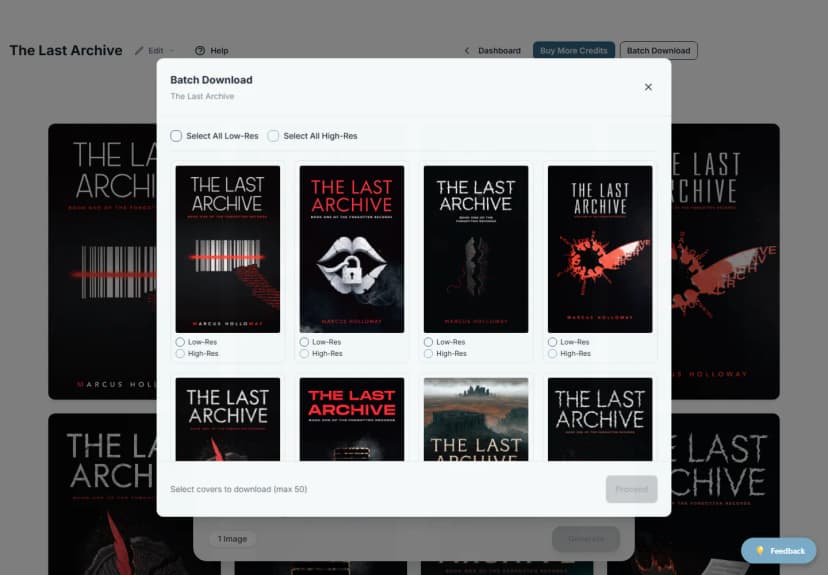
- Select low-resolution, high-resolution, or both for each cover.
- Use Select All Low-Res or Select All High-Res when useful.
- Choose up to 50 cover-resolution items in one job.
- Start the batch.
BeYourCover processes the files in the background and emails a download link. The link is valid for seven days. You can close the progress window while the job runs.
If only some files succeed, the job is marked partially ready and the email contains the completed files.
Before using an exported cover
Inspect the downloaded file at 100% zoom and as a small thumbnail. Confirm:
- Correct title, subtitle, and author
- No unwanted AI artifacts
- Adequate contrast
- No watermark
- Correct aspect ratio and dimensions
- No important content too close to an edge
- Compliance with the current platform requirements