Amazon Book Cover Dimensions: 2,560 × 1,600 px + KDP Print Sizes
Exact Amazon book cover dimensions: 2,560 × 1,600 px for Kindle (1.6:1 ratio), plus KDP paperback & hardcover sizes with spine-width math and a free template.
Posted by
 Pablo Yáñez
Related reading
9 Best Book Marketing Tools for Indie Authors (2026)
Compare nine book marketing tools for indie authors, from market research and cover design to reader delivery, email, promotion, and ad tracking.
6 Best Book Brush Alternatives for Indie Authors (2026)
Looking for a Book Brush alternative? Six tools for indie authors compared — AI cover generators, mockup makers, and free options — with real pricing.
6 Best Canva Alternatives for Book Cover Design (2026)
The best Canva alternatives for book cover design: AI cover generators, free pro design apps, and author-specific tools — compared with honest pros and cons.
Ready to design your cover?
Use our AI book cover generator to create tailored book cover concepts in minutes.


Amazon book cover dimensions are 2,560 × 1,600 pixels (height × width, a 1.6:1 aspect ratio) for Kindle eBooks. Print covers work differently: KDP calculates the file size from your trim size (e.g., 6" x 9"), final page count, and paper type, plus 0.125" of bleed on every outer edge — all at 300 DPI.
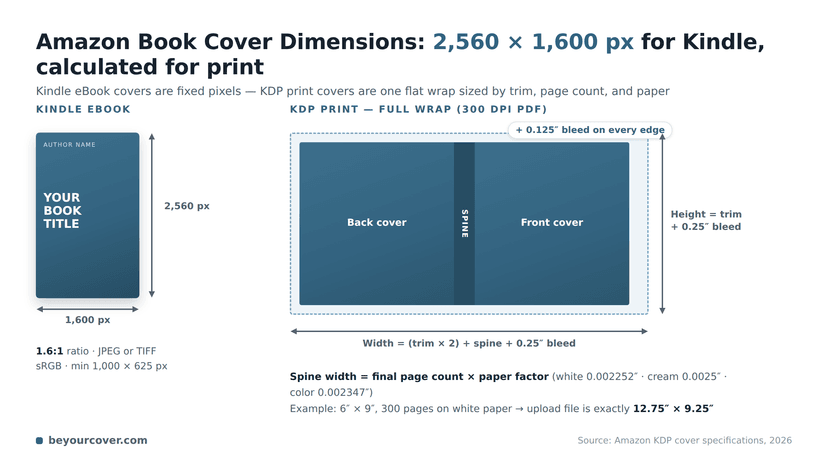
If you want exact paperback or hardcover measurements without doing the math by hand, use our KDP Cover Size Calculator alongside this guide. Then let the free KDP Cover Creator turn your front cover into the full print file at those exact dimensions.
Your Quick Reference Guide to KDP Cover Dimensions

Understanding Amazon KDP's technical specifications can seem daunting for indie authors. The key is to recognize the fundamental difference between digital and print cover requirements. Each format serves a distinct purpose and follows its own set of rules.
Most authors discussing "Amazon book cover dimensions" are managing two separate concepts: pixel dimensions for Kindle eBooks and physical measurements for print-on-demand books. For Kindle, Amazon recommends 2,560 x 1,600 pixels to ensure your cover appears crisp and professional on high-resolution screens. Print covers, in contrast, are built around the physical book's trim size and spine width, not a fixed pixel count. You can always review the official requirements on the KDP specifications page.
Quick Guide: KDP Cover Dimensions at a Glance
To simplify the process, here is a checklist breaking down the most important specifications for both eBook and print covers.
| Format Type | Key Metric | Ideal Dimension | Minimum Requirement |
|---|---|---|---|
| Kindle eBook | Pixel Dimensions | 2,560 x 1,600 px | 1,000 x 625 px |
| Kindle eBook | Aspect Ratio | 1.6:1 | 1.6:1 |
| Print (Paperback/Hardcover) | File Dimensions | Trim Size + Bleed + Spine | Depends on trim & page count |
| Print (Paperback/Hardcover) | Resolution (DPI) | 300 DPI | 300 DPI |
This table provides a solid starting point. Remember that for print, the "Ideal Dimension" is a formula, not a fixed number, because every book's page count and trim size is unique.
Key Differences Between eBook and Print Covers
The core distinction lies in how a reader interacts with the cover. An eBook cover is a single digital image designed for on-screen viewing. A print cover is a physical, wrap-around file that a printer uses to create the final book.
Here's a practical breakdown:
- eBook Covers (Kindle): These are all about pixels. The primary goal is to create a compelling thumbnail that stands out in the Kindle store and looks sharp on devices ranging from smartphones to e-readers.
- Print Covers (Paperback/Hardcover): These are measured in inches or centimeters to fit a physical book perfectly. Your final file is one large, flat image that includes the front cover, back cover, spine, and a small safety margin called "bleed."
Common Pitfall: A frequent mistake for new authors is uploading their eBook cover file for their print book. KDP will reject it because the file lacks the required back cover, spine, and bleed that printers need.
For example, a stunning fantasy cover that looks perfect on a Kindle will need to be completely re-formatted to fit the wrap-around template for a 300-page paperback. Generating KDP-ready files for both formats is a practical step; you can use design software or an AI tool to simplify the process and ensure compliance. Working from one of our book cover templates also keeps the ebook and paperback versions visually consistent, since both are built from the same layout.
Kindle Ebook Dimensions in This Format System
The Kindle file in the comparison is a front-only RGB JPEG or TIFF. KDP's ideal size is 2,560 pixels tall by 1,600 pixels wide, a 1.6:1 ratio. Because this page compares all Amazon cover formats, it keeps the ebook entry brief. Use the dedicated Kindle ebook cover-size guide for minimums, file size, color, thumbnail testing, and upload checks.
How to Calculate Your Print Cover Dimensions
Calculating the dimensions for a KDP paperback or hardcover can seem complex, but it's straightforward once you understand the components. Unlike an eBook cover, a print cover is a full wrap-around file. It's a single flat document that includes the front cover, back cover, spine, and a margin for "bleed."
The starting point is the book’s trim size—the final, physical dimension after printing and cutting. If you're publishing a standard 6" x 9" paperback, that dimension is your foundation for all other calculations.
Breaking Down the Full Cover Formula
To get the final dimensions for your upload file, you must add the width of the front cover, back cover, and spine, plus extra for bleed on all four sides.
Here’s the formula:
- Cover Width = (Trim Width x 2) + Spine Width + (Bleed x 2)
- Cover Height = Trim Height + (Bleed x 2)
KDP requires a standard bleed of 0.125 inches on all outer edges of your cover file. This is crucial. It ensures your background color or image extends past the trim line, so when the printer cuts the book, you don't end up with unsightly white slivers along the edges.
A Practical Calculation Example
Let's apply this to a real-world scenario: a 6" x 9" paperback with a spine that measures 0.5 inches wide.
Calculating the Width:
- Front & Back Cover Width: 6" (Trim Width) x 2 = 12"
- Add Spine Width: 12" + 0.5" = 12.5"
- Add Bleed: 12.5" + (0.125" x 2) = 12.75"
Calculating the Height:
- Trim Height: 9"
- Add Bleed: 9" + (0.125" x 2) = 9.25"
The final, print-ready cover file for a 6" x 9" book with a 0.5" spine must be exactly 12.75" x 9.25". This precision is non-negotiable for KDP’s printing process.
This concept map breaks down the key specifications for book covers, from dimensions to file types.
 This shows that a great cover isn't just about art; it’s about mastering technical details—dimensions, ratio, and file format—from the beginning.
Getting these calculations right is essential. While you can set up your document manually, one wrong number can cause problems. To see what tools can help, check out our guide on the best book cover design software. The right software can automate this entire process, producing a KDP-compliant file with the correct bleed and spine settings already included.
Turning Dimensions Into KDP-Ready Files
Once you know the numbers, treat them as production specs for each cover asset instead of trying to force one file to do everything.
- Start with the front cover. Create the ebook/front-cover artwork first, because this is the visual foundation for every other format. A dedicated book cover generator can start from your title, genre, author name, and summary, then let you explore genre-tuned styles before you commit to a direction.
- Build the full wrap after the page count is final. Paperback and hardcover files need the front, spine, back cover, and bleed in one flattened PDF. The spine width depends on your formatted interior, so wait until your manuscript PDF is locked before creating the wrap.
- Export separate files for separate channels. Kindle needs a front-cover JPEG or TIFF. KDP Print needs a full-wrap PDF. Audible needs a square audiobook cover. Marketing campaigns usually need their own social mockups or ad images. Keeping these as separate exports prevents accidental stretching, cropping, or color shifts. Follow the complete book cover repurposing workflow to preserve one visual identity across those outputs.
- Proof the final upload inside KDP. Even if your tool generates the wrap with bleed and safety guides, always inspect the KDP Launch Previewer for spine alignment, trimmed text, barcode placement, and low-resolution warnings before approving the file.
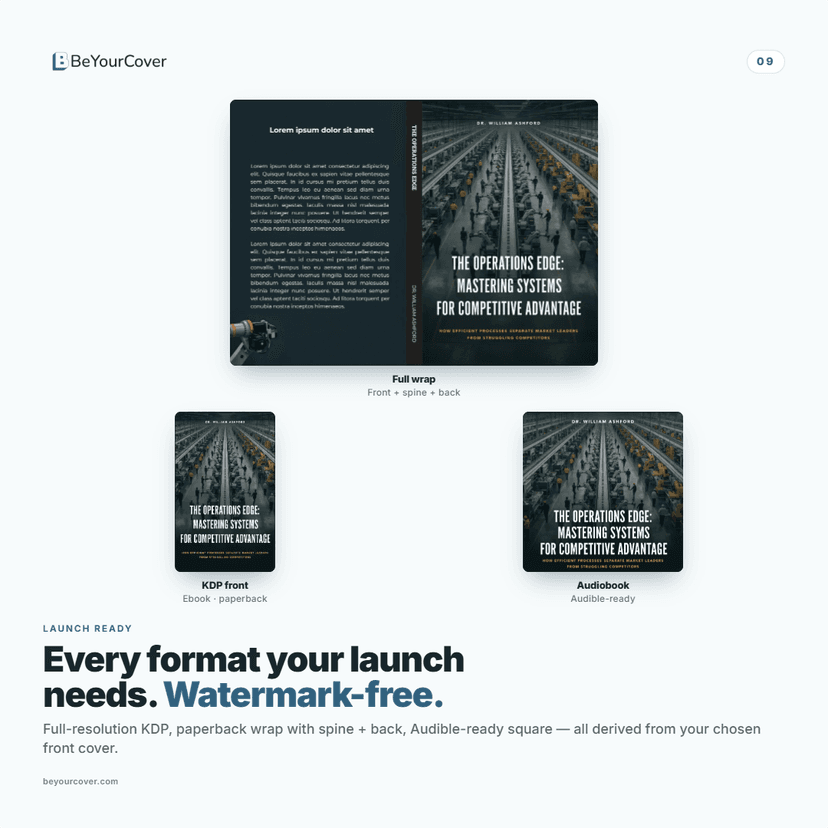
This is where BeYourCover's full-wrap workflow is useful: you can generate the front cover, adapt it into a paperback or hardcover wrap with spine and back, then create audiobook and campaign assets from the same chosen design. If you already created your cover outside BeYourCover, you can also upload that external front cover and transform it into a full wrap cover in seconds. The math still matters, but the workflow reduces the number of manual setup steps where errors usually creep in.
Mastering the KDP Spine Width Calculation
For any indie author creating a print book, the spine is the most critical variable in the cover design process. Unlike an eBook cover's fixed pixel dimensions, a print cover’s spine is dynamic—its width changes based on two factors: your final page count and the type of paper you choose for the interior.
Different paper stocks have different thicknesses. KDP offers three main options for paperback interiors—white, cream, and color—and each has a unique thickness. A 300-page book on thicker cream paper will have a wider spine than the same book on thinner white paper. An incorrect calculation is one of the most common reasons a cover file is rejected.
The Official KDP Spine Calculation Formulas
To ensure a perfect fit, you must use Amazon's specific formulas for each paper type. Misjudging these numbers, even slightly, can misalign your entire design and lead to major printing errors.
Here's a reference table with the official formulas.
| KDP Spine Width Calculation Formulas | ||
|---|---|---|
| Paper Type | Formula (per page) | Example (300 Pages) |
| White Paper | Page Count × 0.002252" (0.0572 mm) | 0.6756" |
| Cream Paper | Page Count × 0.0025" (0.0635 mm) | 0.75" |
| Standard Color Paper | Page Count × 0.002347" (0.0596 mm) | 0.7041" |
The difference adds up. A spine designed for a 300-page book on white paper (0.6756") would be too narrow for the same book on cream paper (0.75"). This mistake would cause your spine text to wrap onto the front or back cover during printing—a classic sign of an amateur cover.
Why You Must Use Your Final Page Count
A common trap for authors is calculating the spine width too early. The page count from your manuscript in Microsoft Word or Google Docs is not the number to use.
Crucial Tip: Your spine calculation must be based on the final page count from your fully formatted, print-ready interior PDF.
This is a non-negotiable step. If you design your cover using an estimated page count and then adjust the interior, your cover file will be dimensionally incorrect and KDP will reject it. Any tweak to font size, margins, or trim size can alter the page count and require a recalculation.
The Foolproof Method: KDP's Cover Calculator
While you can do the math yourself, the most reliable method is to use KDP's official Cover Calculator and Template Generator. This free tool eliminates the risk of human error.
You simply input a few details:
- Binding type (paperback or hardcover)
- Interior type (black & white or color)
- Paper type (cream or white)
- Page-turn direction
- Measurement units (inches or millimeters)
- Interior trim size
- Your final page count
KDP will generate a downloadable template package (in PNG and PDF formats) with the exact dimensions for your full cover wrap. This template clearly marks the bleed area, safety margins, and the perfectly calculated spine width. Using this template is the best practice for ensuring your spine text is centered and your cover looks professionally printed.
Understanding Bleed and Safety Margins
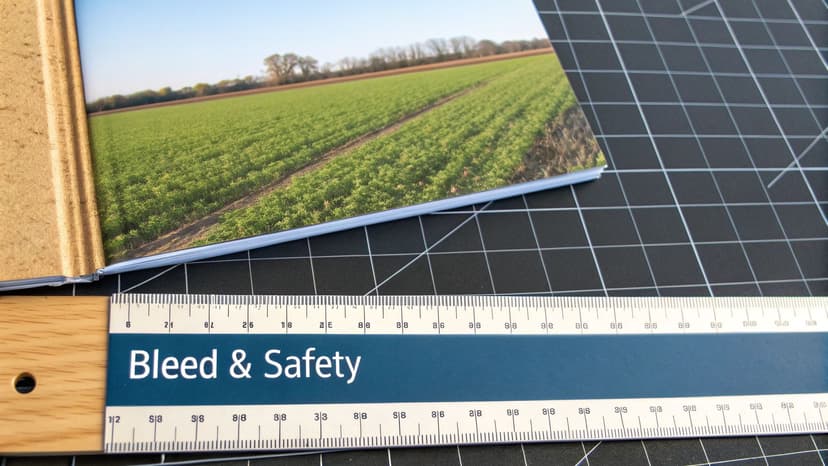
To ensure your physical book looks professionally produced, you must understand two key print design concepts: bleed and safety margins. These are not suggestions from Amazon KDP; they are mandatory rules that prevent your book from looking amateurish and getting rejected during upload.
Ignoring these requirements is a common reason for file rejection. Even if a file with errors slips through, you could end up with a printed book that has awkward white slivers on the edges or, worse, your author name partially trimmed off.
What Is Print Bleed
Bleed is the part of your cover design that extends beyond the final trim line of the book. It acts as a small buffer zone for your artwork. KDP’s printers require you to add 0.125 inches of your background image or color to the top, bottom, and outside edges of your cover.
This is because industrial printing and cutting machines are not always perfectly aligned. The bleed ensures that if the cutter is slightly off, it slices through your extended background art instead of blank paper, preventing unsightly white borders.
For a standard 6" x 9" paperback, your front cover file must be 6.125" x 9.25" to include this crucial bleed.
Why Safety Margins Matter
While bleed pushes your background design outward, the safety margin creates a protective zone inside the cover to keep important elements from being trimmed off. Every critical element—your title, author name, and key illustrations—must stay within this safe zone.
KDP mandates a minimum safety margin of 0.25 inches from the final trim edge. Anything placed in the risky area between the safety margin and the bleed line is a gamble. It might appear on the final book, or it might be cut away.
Don't risk it. Only background art intended to fill the entire cover should extend to the edge of your design canvas.
A Practical Checklist for Your Design
Before exporting your file, perform a quick check to ensure everything is positioned correctly.
- Backgrounds: Does your background image or color extend a full 0.125" past the trim lines on all three outer edges?
- Text and Logos: Are your title, subtitle, and author name all comfortably inside the 0.25" safety margin?
- Key Imagery: If you have an important character, as is common in these romance book cover examples, is the entire figure well within the safe zone?
- Barcodes: On the back cover, is the barcode placeholder also tucked safely inside the margins?
Getting these Amazon book cover dimensions right is fundamental. Thankfully, modern tools can simplify this. An AI cover generator, for example, can create KDP-ready files with the correct bleed and safety margins already built-in, saving you from manual calculations.
Common Book Cover Dimension Mistakes (And How to Fix Them)
Even when you follow the KDP cover specifications, a small mistake can lead to file rejection or a poorly printed book. Navigating these technical details is a common challenge for self-published authors, but most errors are preventable.
Here is a checklist of the most frequent and costly mistakes indie authors make. Use this as a final review before uploading your file.
Mistake 1: Calculating Your Spine Width Too Early
This is a major pitfall. Many authors design their full-wrap paperback cover based on an estimated page count from their Word document. However, the spine width is determined by the final, formatted page count of your interior PDF, and that number often changes after formatting.
A miscalculation means your spine will be too thick or too thin, causing spine text to spill onto the front or back cover—a clear sign of an amateur production.
How to Avoid It: Finalize the formatting of your interior manuscript first. Once you have the print-ready PDF, use that exact page count for your spine calculation.
Mistake 2: Forgetting to Add Bleed
Another common error is creating a cover file at the exact trim size (e.g., 6" x 9") without adding the mandatory 0.125-inch bleed. Bleed is the extra portion of your background image or color that extends beyond the trim lines.
Without it, any slight shift during printing and trimming can leave a white border on your finished book, making it feel cheap and unprofessional.
How to Avoid It: Set up your design canvas to include the bleed from the start. Your background must stretch to the edges of this larger canvas to ensure a clean, professional trim.
Mistake 3: Placing Text Outside the Safety Margins
While bleed extends your design outward, the safety margin is your protected zone inside the cover. Authors often place their name, title, or other key elements too close to the edge, risking them being cut off during production.
As a rule, keep all vital text and imagery at least 0.25 inches away from the final trim lines. This guarantees nothing important is lost.
Pro Tip: Never risk placing critical elements near the edge. A title with a letter sliced off makes your book look flawed before anyone opens it. Keep everything important comfortably inside the safe zone.
This is particularly important for character-driven genres, like those seen in these fantasy book cover examples. You wouldn't want your protagonist's face or a crucial magical element to be trimmed away.
If you use a tool like BeYourCover to generate your cover, these issues are often handled automatically. The platform can build your files with the correct bleed and safety guides in place, reducing the chance of human error.
From Dimensions to a Production File
Dimensions are only the geometry. A print cover still needs a complete back, spine, front, bleed, safe areas, embedded fonts, and a checked PDF. Use the printable book-cover workflow for assembly, export, rejection fixes, and proofing. Use the KDP self-publishing guide for the Amazon dashboard and release process.
Common Questions About KDP Cover Dimensions
Even with a good understanding of the rules, specific questions about Amazon book cover dimensions often arise. This section provides quick answers to help you overcome common hurdles.
What Size Should an Amazon Book Cover Be?
For Kindle eBooks, Amazon recommends 2,560 × 1,600 pixels (a 1.6:1 height-to-width ratio), with an absolute minimum of 1,000 × 625 pixels. Print covers have no fixed pixel size — the upload file is calculated from your trim size, spine width, and 0.125 inches of bleed, exported at 300 DPI.
What Happens If My KDP Print Cover Dimensions Are Wrong?
If your dimensions are incorrect, KDP's automated review system will most likely detect the error and reject the file during upload. It is designed to flag common mistakes like an incorrect total width or height—often caused by a miscalculated spine or missing bleed—and will prevent you from publishing until it is fixed.
If a smaller error, such as text slightly outside the safety margin, is not caught, the issue will only appear on the printed book. This can result in a misaligned spine, a trimmed title, or other visual flaws that lead to unhappy readers and returns.
Can I Use the Same Cover File for My eBook and Paperback?
No, you cannot use the exact same file for both. They are fundamentally different formats designed for different purposes.
- eBook Covers: A single, front-cover-only image, typically a JPEG or TIFF file with pixel-based dimensions. The standard is 2560 x 1600 pixels.
- Print Covers: A full, wrap-around design combining the front, back, and spine into one large, print-ready PDF. Its dimensions are calculated in inches (or centimeters) and depend on your book's trim size, page count, and paper choice.
While the front cover artwork will be the same, the final files you upload are structured and formatted differently. You must create two separate files, each tailored to KDP’s specifications for its format.
How Do I Find My Final Page Count to Calculate the Spine?
Your final page count is determined only after your interior manuscript is completely formatted and saved as a print-ready PDF in its final trim size. Do not use the page count from your Word or Google Docs file, as it is almost guaranteed to be inaccurate.
Seriously, this is important: The page count of your final, formatted interior PDF is the only number you should use for your spine width calculation. If you make any subsequent changes—adjusting font size, margins, or adding a paragraph—you will likely alter the page count and need to create a new cover file.
Does KDP Provide Cover Templates?
Yes, and using them is highly recommended. Amazon KDP offers a free and practical Cover Calculator & Template Generator. It is an essential tool for authors and designers.
You input your book’s binding type, interior color, paper type, trim size, and final page count. The tool generates a downloadable template package (in PDF and PNG formats) with the exact dimensions your full cover wrap requires. The template includes clear visual guides for the spine, bleed, and safety margins, making it the most reliable way to ensure your cover art is correct.
Relevant Free Tools
Keep going with the right generator
These tools match the topic of this article and give readers a direct next step.
Publishing Tool
KDP Cover Size Calculator
Free interactive calculator for exact KDP spine width and cover dimensions, with a downloadable blank template.
Open tool
Publishing Tool
KDP Cover Creator
Upload your front cover and build the full KDP print wrap — spine, back cover, exact bleed — then download a print-ready 300 DPI PDF. No sign-up, no watermark.
Open tool
Ready to Create Your Own Book Cover?
Turn your story into a visual masterpiece. Fill in the details below to start generating professional covers instantly.