A Complete Guide to Amazon Kindle Direct Publishing Book Sizes
Master Amazon Kindle Direct Publishing book sizes. Get clear guidance on trim sizes, margins, and bleed to publish your book successfully on KDP.
Posted by
 Pablo Yáñez
Related reading
9 Best Book Marketing Tools for Indie Authors (2026)
Compare nine book marketing tools for indie authors, from market research and cover design to reader delivery, email, promotion, and ad tracking.
How to Build a Character Profile for Book Cover Design
Build a visual character profile that keeps cover art accurate and consistent. Define appearance, clothing, references, exclusions, and series continuity.
How to Repurpose One Book Cover for Print, Audio, and Ads
Turn one approved front cover into a print wrap, audiobook square, text-free artwork, mockups, ads, and social assets without rebuilding the design.
Ready to design your cover?
Use our AI book cover generator to create tailored book cover concepts in minutes.


Choosing the right book size on Amazon KDP is a foundational decision that impacts your entire project, from printing costs and page count to the reader's experience holding your book.
While KDP provides numerous options, most successful indie authors use a handful of industry-standard dimensions. Sizes like 5.5" x 8.5" for fiction and 6" x 9" for non-fiction are popular because they look professional, feel comfortable to readers, and are cost-effective to print. This guide will help you make an informed choice for your book.
Once you pick a trim size, run it through the KDP Cover Size Calculator to get the full cover width, spine, and print-ready template dimensions. The free KDP Cover Creator then builds the print-ready cover file from your front cover at that size.
Your Quick Guide to Common KDP Book Sizes
The size you choose for your book is called the trim size—the final dimension after it’s been printed, bound, and trimmed. This single choice influences your page count, spine width, and how your book physically appears on a bookshelf.

Sticking to a standard trim size is almost always the right move. It meets reader expectations for specific genres—a compact size for a thriller or a larger format for a workbook feels correct. For instance, a beautifully designed fantasy book cover will look most at home on a classic novel-sized book. Standard sizes are also more cost-effective to produce, which can mean higher royalties for you.
Most Common KDP Paperback Trim Sizes and Their Uses
To simplify your decision, here is a quick-reference table of the most popular paperback sizes on KDP, breaking down the dimensions and their common uses.
| Trim Size (Inches) | Trim Size (cm) | Common Genres and Book Types |
|---|---|---|
| 5" x 8" | 12.7 x 20.32 cm | Mass-market paperbacks, fiction, novels, and memoirs. |
| 5.25" x 8" | 13.34 x 20.32 cm | A slightly wider option for novels, particularly popular in the UK. |
| 5.5" x 8.5" | 13.97 x 21.59 cm | Trade fiction and non-fiction, a very common and versatile size. |
| 6" x 9" | 15.24 x 22.86 cm | The industry standard for most paperbacks, especially non-fiction. |
| 7" x 10" | 17.78 x 25.4 cm | Workbooks, textbooks, journals, and technical manuals. |
| 8.5" x 11" | 21.59 x 27.94 cm | Large-format books, children's books, and art/photography books. |
Consider 6" x 9" as a versatile default for most projects, especially non-fiction. For novels, 5.5" x 8.5" is a popular and professional-looking choice. The other sizes serve specific needs, like large-format children's books or compact mass-market paperbacks.
The Core Lingo: Trim Size, Bleed, and Margins
Before uploading to Amazon KDP, you need to understand the language of print design. A solid grasp of three key terms—trim size, bleed, and margins—is essential for a smooth upload process and avoiding file rejections.
First, trim size is the final, physical dimension of your book. When you select a 6" x 9" book on KDP, you are defining the exact size the reader will hold. It's the most fundamental formatting decision you will make.
Why You Can't Ignore Bleed and Margins
Next is bleed, a critical concept if any design element (like an image or background color) extends to the edge of the page. Printing and cutting machines are precise but not perfect. Bleed acts as a buffer against slight machine shifts during production.
- What is Bleed? It’s an extra 0.125 inches (3.2 mm) of your design that extends beyond the trim line on the top, bottom, and outside edges.
- How it Works: The trimmer cuts your book at the trim line, slicing off the bleed. This ensures your color or image reaches the edge perfectly, with no accidental white slivers.
- When to Use It: You must design your file with bleed if any page has content meant to touch the final edge. If your book contains only text within the page, you can select "No Bleed."
Finally, margins are the empty "safe zones" around the edges of your page where your text and other important elements reside. KDP has minimum margin requirements based on page count to ensure nothing is accidentally cut off or lost in the binding (an area called the gutter).
The Bottom Line: Trim size is the finish line. Bleed is the runoff area for your design, and margins are the guardrails for your content. More files are rejected for bleed and margin errors than almost any other issue.
Mastering these concepts saves time, money, and frustration. It ensures your vision translates flawlessly into a physical book, whether you're designing a complex sci-fi book cover or a simple interior. While generating a cover with an AI tool can help you visualize the layout, understanding these principles yourself is key to getting your file approved on the first try.
How to Choose the Right Paperback Trim Size
Selecting a trim size is a key marketing decision that shapes reader perception and affects your bottom line. The physical dimensions of your book send subconscious signals about its genre, quality, and intended audience. A poor choice can make even a great book feel out of place on a digital or physical shelf.
Your decision should be based on three factors: genre conventions, printing costs, and the desired reader experience. Genre expectations are particularly important. Readers have been conditioned to expect certain books to look and feel a certain way. A thriller in a compact 5.5" x 8.5" size feels appropriate, just as a spacious 7" x 10" workbook provides necessary room for notes.
The Two Most Popular KDP Trim Sizes
Amazon KDP offers many options, but two sizes dominate the paperback market. Understanding why will help you choose the best fit for your manuscript and readers.
First is 6" x 9", often called the gold standard. This size balances readability and cost, making it a favorite for non-fiction, memoirs, and many novels. The pages feel substantial and authoritative without being cumbersome, and the layout provides ample white space. A significant portion of KDP bestsellers use this size.
The other major contender is 5.5" x 8.5". This is a quintessential trade paperback size, especially popular for fiction. It is more compact than the 6" x 9" format, making it portable and comfortable to hold for long reading sessions. A side effect is that it often increases the page count for the same manuscript, making a shorter novel feel more substantial. If you're writing romance, contemporary fiction, or YA, this size is an excellent match.
Making a Strategic Decision
The size you choose directly impacts your finances. A larger trim size fits more words per page, resulting in a lower page count. This reduces your print cost and can increase your royalties. Conversely, a book that feels too thin for its price may deter buyers.
Use this checklist to guide your decision:
- Genre and Audience: Browse Amazon. What sizes are the bestsellers in your category using? Observe the standards, whether you’re writing historical non-fiction or a guide to designing romance book covers.
- Word Count: For a shorter manuscript (under 60,000 words), a smaller 5.5" x 8.5" trim can increase the page count and its perceived value. For an epic over 100,000 words, the 6" x 9" format is likely more cost-effective as it keeps the page count and print costs down.
- Reader Experience: How will someone use your book? A reference guide benefits from a larger format for easy navigation. A novel should be comfortable to hold for extended periods.
Ultimately, the best trim size feels right for your content and aligns with your target reader's expectations. It's a foundational detail for a successful book launch.
Visualizing the end product can help finalize your decision. You can explore different cover concepts for various sizes using an AI tool, which allows you to see how a design appears on different dimensions before committing to a final format.
How Trim Size Affects Your Royalties and Printing Costs
Choosing your trim size is not just a creative decision; it's a critical business one that directly impacts your profit margin on every copy sold. KDP calculates your printing cost based on page count, ink type, and marketplace. Getting this right allows you to price competitively while protecting your earnings.
The formula is straightforward: more pages equal higher printing costs. A larger trim size, like 7" x 10", accommodates more words per page than a smaller 5" x 8" format. For the same manuscript, a larger trim size results in a lower page count. This lower page count reduces the printing fee, leaving more room for royalties.
The Financial Impact of Standard vs. Custom Sizes
So, should you choose a unique size to stand out? It's generally not advisable. Sticking with industry-standard sizes like 6" x 9" or 5.5" x 8.5" is almost always the smartest financial move. These common Amazon Kindle Direct Publishing book sizes are what KDP's presses are optimized to handle, translating to lower fixed costs and production fees for you. Opting for a custom size often means paying a premium.
This difference can be significant. A standard size can minimize printing costs enough to potentially increase net earnings. KDP is a print-on-demand service, and they deduct their fees with precision. A 150-page book in a standard size costs them less to produce than a larger one, and that savings is passed on. You can see a great breakdown of KDP printing costs and royalties to understand how these numbers work in practice.
Balancing Page Count and Perceived Value
Of course, the goal isn't just to slash printing costs. You must also consider reader perception. A book that looks too thin for its price tag can be a difficult sell. The key is to find the right balance.
For a shorter novella, a smaller trim size can be beneficial. It increases the page count, making the physical book feel more substantial and helping to justify its price. This gives the book a satisfying "thud factor."
Conversely, for a massive 100,000-word manuscript, a larger trim size like 6" x 9" is almost essential. It prevents the page count from becoming unmanageable and keeps printing costs from consuming your profit.
Before you commit, do your research. Use KDP’s printing cost and royalty calculator. It is an indispensable tool that allows you to input your trim size, page count, and list price to see your exact earnings per sale. For a complete overview of the entire KDP process, our guide on self-publishing on Amazon is a valuable resource. A little financial planning upfront ensures you choose a format that benefits both your readers and your wallet.
Calculating Your Book Spine Width for a Perfect Cover
An incorrect spine width is one of the quickest ways to get a cover file rejected by KDP. A miscalculation of even a fraction of an inch can cause spine text to wrap onto the front or back cover, which looks unprofessional. Nailing this measurement is critical for a smooth publishing process.
The calculation is simple and depends on two factors: your final page count and the interior paper type you select. KDP offers different paper stocks with varying thicknesses, which determine the final width of your book.
KDP Spine Calculation Formulas
Amazon provides the exact formulas to eliminate guesswork. You multiply your total page count by the appropriate figure for your chosen paper. This gives your cover designer the precise dimension needed for a perfectly aligned cover.
Here is a quick reference table with the formulas you'll need:
KDP Spine Width Calculation Formulas
| Book Interior Type | Spine Width Formula (Inches) |
|---|---|
| White Paper | Page count x 0.002252” |
| Cream Paper | Page count x 0.0025” |
| Color Interior | Page count x 0.002347” |
For example, a 200-page book printed on cream paper would have a spine width of 0.5 inches (200 pages x 0.0025). This seemingly small number is a make-or-break detail for your full print-ready cover spread.
These small technical decisions about book size and page count directly impact your printing costs and profit margins.
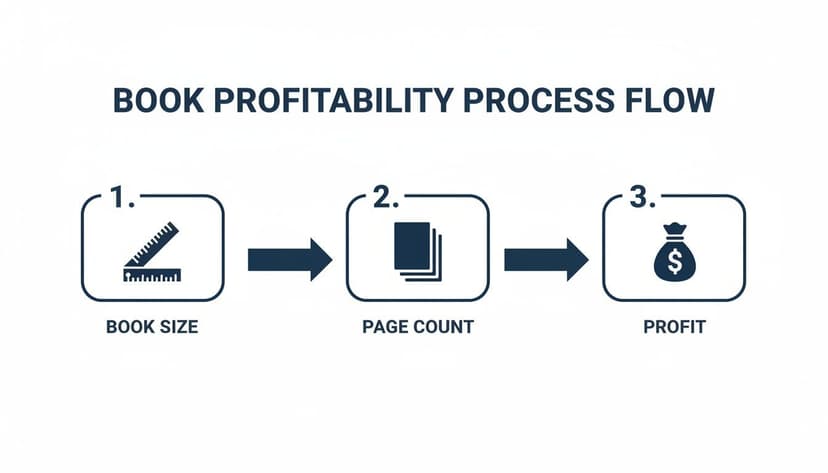
This shows how early choices, like trim size, are directly tied to your earnings from each sale.
Getting the Total Cover Dimensions Right
Once you have the spine width, calculating the full cover file dimensions is straightforward. The total width is your front cover width + back cover width + spine width, plus any required bleed.
Pro Tip: Always wait until your manuscript formatting is 100% complete before finalizing the spine width. Adding or removing even a few pages can alter the calculation enough to require a cover redesign.
Beyond the math, ensure your cover images are high-resolution. A blurry, pixelated final print can ruin a great design. For a deep dive on image quality, this guide on understanding pixel dimensions for print quality is a fantastic resource.
To see how your design will look in the real world before committing, consider using a book cover mockup generator. It's a great way to catch potential issues and get a feel for the finished product before you publish.
Ebook Covers Are Not Physical Book Sizes
Ebooks do not have a physical trim size, spine, paper choice, or fixed page geometry. This page therefore owns KDP paperback and hardcover trim-size decisions. For the front-only Kindle image, including the 2,560 × 1,600-pixel recommendation and thumbnail checks, use Kindle ebook cover size.
Common KDP Formatting Mistakes to Avoid
The Amazon Kindle Direct Publishing upload process can be challenging, and small formatting mistakes can lead to file rejections, printing errors, and frustrating delays. Getting these technical details right is key to a smooth, professional launch.
One of the most frequent errors authors make is an incorrect bleed setup. If any design element is meant to reach the edge of the page, you must add an extra 0.125 inches to the outside edges of your cover and interior files. Forgetting this step or selecting "No Bleed" when your design requires it will result in thin, unprofessional-looking white borders on the final printed book.
Margins and Spine Miscalculations
Another major hurdle is ignoring KDP’s margin requirements. Margins are a "safe zone" for your content. Every page needs this buffer to ensure text and important images are not cut off during trimming or lost in the binding. Placing content outside these minimum margins is a guaranteed file rejection. Always double-check KDP’s guidelines for your specific trim size and page count.
Equally problematic is a miscalculated spine width. As covered earlier, the spine's dimension depends on your final page count and paper choice. Finalizing your cover design before your interior formatting is 100% complete is a classic, costly mistake. A change of even a few pages can render your entire cover unusable.
Here’s a quick pre-upload checklist:
- Bleed Check: Does any element touch the page edge? If yes, confirm your file dimensions include the extra 0.125" on the top, bottom, and outer edges.
- Margin Review: Is all text and critical imagery safely inside the required margins for your book’s page count?
- Final Page Count: Is your interior manuscript completely finished before you calculate the spine width?
- Image Resolution: Are all images in your cover and interior files a crisp 300 DPI? Anything less will look blurry in print.
Paying close attention to these technical details is as important as the writing itself. A flawless file upload reflects the professionalism of your work and ensures the final product matches your vision.
For authors writing in visually demanding genres, like those creating compelling thriller book covers, getting these details right is non-negotiable. While an AI tool can help generate correctly sized templates to start from, it is always wise to perform a final manual check against KDP’s official specifications before publishing.
Your KDP Book Size Questions, Answered
Getting your book's dimensions right is essential, but the details can be confusing. Here are straightforward answers to the most common questions about KDP sizing.
What Is the Best Book Size for KDP?
For most fiction and non-fiction books, the 6" x 9" (15.24 x 22.86 cm) trim size is the best and safest choice. It is the industry-standard paperback size because it feels professional, offers excellent readability, and is cost-effective to print, which helps protect your royalty margins.
Unless you have a specific reason to choose another size (such as for a children's book or workbook), 6" x 9" is the recommended default that strikes the perfect balance for most authors.
Can I Change My Book Trim Size After Publishing?
No, you cannot. Once your book is published with an ISBN, the trim size for that edition is locked in permanently.
If you need to release your book in a different size, you must treat it as a new edition. This requires you to:
- Unpublish the original version from your KDP bookshelf.
- Create a new book project from scratch with the new trim size.
- Assign it a new, unique ISBN.
How Do I Calculate My Final KDP Cover File Dimensions?
To determine the total size for your full print cover file, you add the front cover, back cover, and spine width, plus bleed on all sides. The formula for the total width is:
(Trim Width + 0.125" Bleed) + (Spine Width) + (Trim Width + 0.125" Bleed)
The height calculation is simpler: Trim Height + 0.25" Bleed (0.125" for the top and 0.125" for the bottom).
Since a small miscalculation can ruin your design, it is always recommended to use KDP's official cover calculator. It provides the exact measurements based on your page count and paper choice. A stunning horror book cover can be ruined by a spine that is off by a single millimeter, so always double-check your math.
What Image Resolution Is Required for KDP Print?
For sharp, professional printing, every image in your project—on the cover or inside the book—must have a minimum resolution of 300 DPI (Dots Per Inch).
If you upload a file with less than 300 DPI, you will almost certainly see blurry, pixelated images in the final printed book. When exporting your files for upload, always choose the highest quality setting to preserve the 300 DPI resolution.
Relevant Free Tools
Keep going with the right generator
These tools match the topic of this article and give readers a direct next step.
Publishing Tool
KDP Cover Size Calculator
Free interactive calculator for exact KDP spine width and cover dimensions, with a downloadable blank template.
Open tool
Publishing Tool
KDP Cover Creator
Upload your front cover and build the full KDP print wrap — spine, back cover, exact bleed — then download a print-ready 300 DPI PDF. No sign-up, no watermark.
Open tool
Ready to Create Your Own Book Cover?
Turn your story into a visual masterpiece. Fill in the details below to start generating professional covers instantly.